English
Your first collection
Collect the titles and prices of the 4 books on the first page of the practice bookshop, then download the table. Start with one request to AI.
If the extension is not ready, install and sign in first. The books are fictional and do not need to be purchased.
1. Open the bookshop
The bookshop opens in a new tab. Switch to it to see 4 books, including Between Mountains and Seas. Return to this tutorial whenever you need the next step.
2. Tell AI what to collect
Stay on the bookshop page. Click the Jiutouchong icon in your browser toolbar to open the sidebar, then choose Compile with AI.
Paste the request above into the input at the bottom of the conversation and send it.
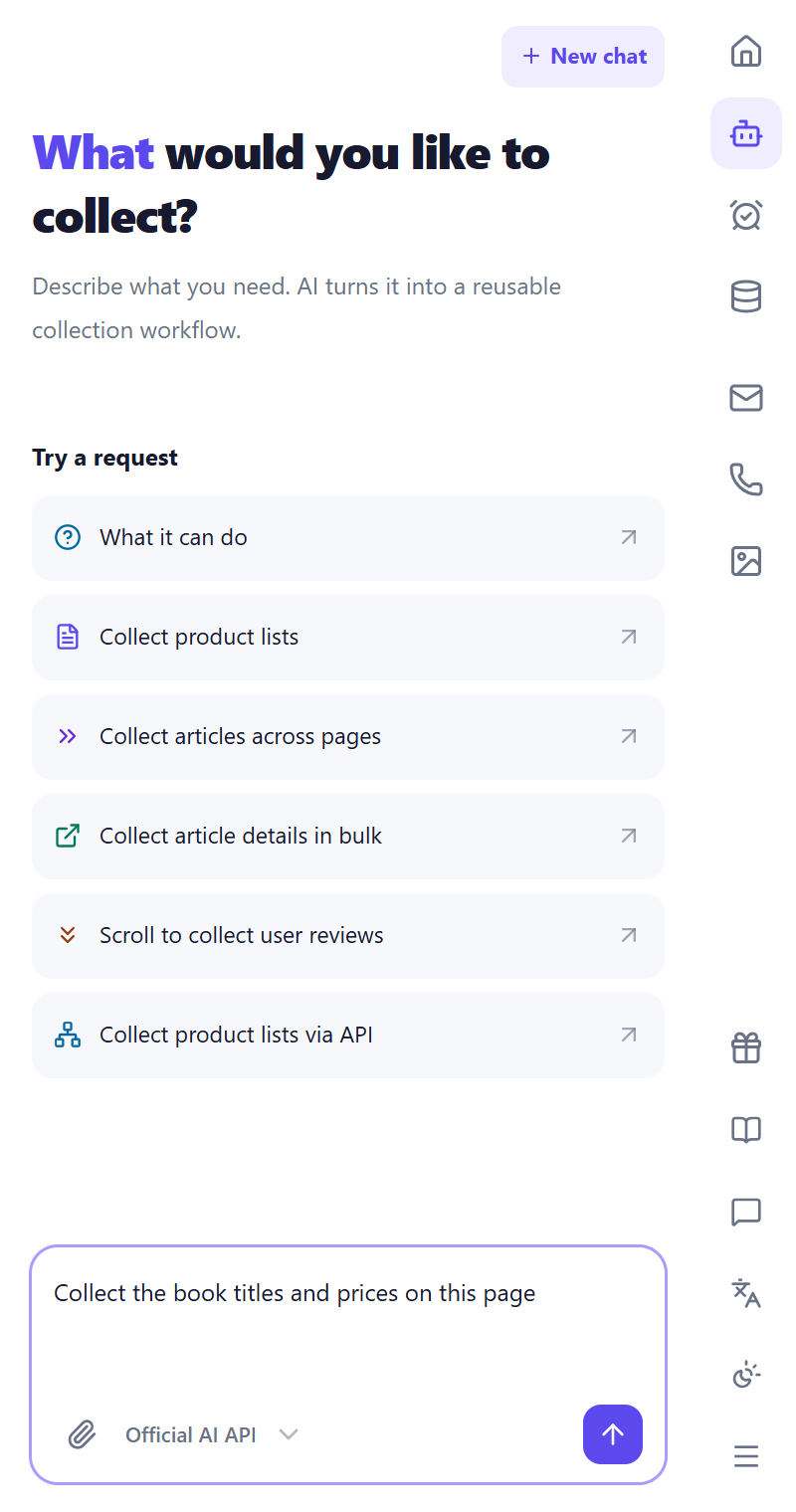
AI examines the page and prepares the steps. The page may scroll or open a book while it works. Let it finish, and answer any questions it asks.
Wait until a workflow card with a task name appears in the conversation. A workflow is a saved set of steps that you can run again.
3. Start the task
Click Bookshop playground at the top of the bookshop page to return to the original 4 books.
In the extension, open Workbench, find the new workflow, and click Manual start. This runs the prepared steps to collect the data.
Keep the bookshop window visible until the task finishes.
4. Check the table
Open Storage, find the result, and click Preview. Check that these 4 books appear with their matching prices:
| Book title | Price |
|---|---|
| Between Mountains and Seas | ¥32.00 |
| City Strolls | ¥45.00 |
| Room to Breathe | ¥39.00 |
| Moonlight on the Page | ¥28.50 |
The price formatting may vary: 32 and ¥32.00 represent the same amount. What matters is that each title matches its price. Column names may also vary; you can change them after the first run.
When the content matches, click Download in Storage and choose Excel to save it to your computer.
Want column names in a different language?
In Workbench, click Edit on the workflow. After the task name already inserted in the input, add:
Change the column names to English.
For another language, name that language instead, for example Japanese.
After saving the change, return to the bookshop home page, run the task again, and check the new results. To keep this run separate, add “Save this run in a separate new table.”
Cannot find the icon or open the sidebar?
Click the browser puzzle icon and find Jiutouchong Agent. If you just installed it, refresh the bookshop. See Find the extension icon.
AI asks you to sign in, configure a service, or add credits?
Follow the buttons on the message card, then return to the bookshop. After signing in, new users can usually start with the default AI service. You do not need to configure your own model first. See While AI prepares your task if you cannot continue.
The table is empty, wrong, or has more than 4 rows?
Check that you started on the bookshop home page. In Workbench, click Edit and describe the problem, for example “The prices are missing. Please check.” After saving, return to the home page and run again.
Earlier runs may remain in the dataset. First check the content for these 4 books. For more help, see No data or empty results.
Next, add one more column
In Workbench, click Edit on this workflow and add the following after the inserted task name:
Add the author.
After saving, return to the bookshop home page and run again. Check that the 4 newly collected rows include authors. Earlier results may remain; refresh an already-open preview before checking.
Continue with Edit a saved workflow.