JTC RPA
Browser automation — no coding required. Two core AI capabilities: AI Natural Language Selectors let you locate page elements in plain language, and AI Smart Extraction lets you extract page data with a single sentence. No coding, no CSS selectors.
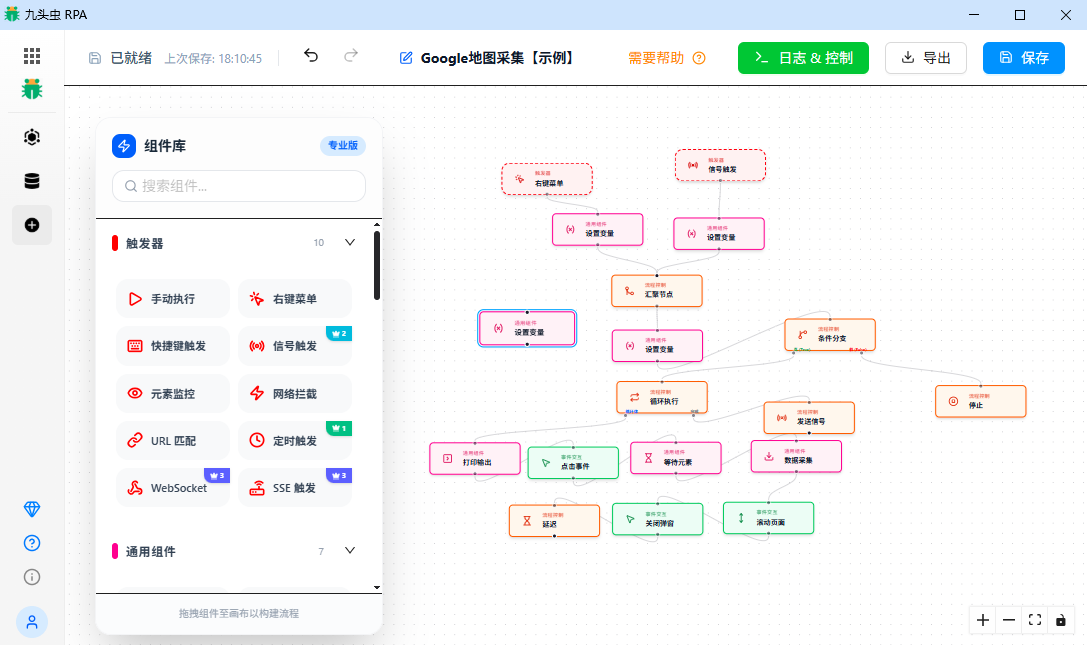
What Makes JTC RPA Different
Most RPA tools force you to learn element locating first before you can do anything. You have to open DevTools, understand the DOM tree, and write correct CSS selectors or XPath — a step that turns away most non-technical users.
JTC RPA solves this with AI-powered natural language element selection:
- Want to click a button? Type
click the login button - Need to fill a form field? Type
password input field - Looking for a specific row in a table? Type
click "View Details" on order #001
No F12. No CSS class names. No element IDs. Describe elements on the page the way you'd describe them to a coworker. Of course, if you're already comfortable with CSS selectors, you can write them directly — switch between modes anytime.
Same for data extraction. Traditional RPA forces you to define row selectors, column rules, pagination logic... JTC RPA's AI Smart Extraction only needs one sentence: "Extract product titles, prices, and sales numbers" — AI parses the page structure and returns results in seconds.
What You Need to Know
- Know how to use a browser — everyday Chrome or Edge browsing
- Can install a browser extension — one click in the extension store
- Think in steps — break down a task into "open A → wait for B → click C → fill in D"
That's it. CSS selectors, variables & expressions, and the data transform pipeline are optional advanced skills — you can automate most tasks without them.
What You Can Do
| Task | How |
|---|---|
| Log into a site | Drag in Open Page + Text Input ×2 + Click, describe each target to AI |
| Scrape data | Drag in AI Smart Extraction, describe what fields you want in one sentence, AI extracts automatically |
| Batch form filling | Use Excel as a data source, loop through and fill web forms |
| Scheduled checks | Set a Scheduled Trigger to check page status and capture screenshots daily |
| Monitor for new messages | Set up an Element Monitor Trigger to auto-capture when new content appears |
More Than One Way to Start
Most automation tools only have one way to start: press "Run". JTC RPA offers two categories of triggers for different scenarios:
Manual Triggers — You're in Control
Requires your action to start. Best when you're at your computer and ready to step in:
| Trigger | Best For |
|---|---|
| Manual Execute | Click "Run" in the canvas — great for testing and one-off tasks |
| Context Menu | Select content on a page → right-click → choose a menu item |
| Keyboard Shortcut | Bind a hotkey combo, one-press start — perfect for frequent tasks |
Automatic Triggers — Fire and Forget
No human needed. Starts automatically when conditions are met. Best for unattended, long-running automation:
| Trigger | Best For |
|---|---|
| Scheduled | Cron-based execution — e.g. run at 9 AM daily, sync data every hour |
| Element Monitor | Auto-trigger when a DOM element appears — e.g. "new message arrived", "popup showed up" |
| Network Intercept | Intercept XHR/Fetch requests — trigger when a target API is hit |
| URL Match | Trigger on URL changes — works with SPA route navigation |
| WebSocket / SSE | Receive real-time push commands from the server to drive the browser remotely |
| Signal | One workflow finishes and sends a signal, another receives it and starts — multi-workflow orchestration |
These 6 automatic triggers are what set JTC RPA apart. They transform it from an "assistant tool" into a 24/7 unattended automation system — configure once and let it run.
Error Handling Without Supervision
Every node can independently configure its retry strategy: how many retries, how long between attempts, and what to do when all retries fail (stop / skip & continue / break out of loop / skip this iteration). Network hiccups, popup interruptions, delayed element rendering — JTC RPA handles these common failures automatically. Set it once, run unattended with confidence.
New to JTC RPA? Jump straight to Quick Start and run your first automation in 5 minutes.