Element Selector Tool
The Element Selector Tool is a floating interactive panel overlaid on the page. It lets you click elements to instantly generate CSS selectors — no manual writing required. It also includes an event simulation tester so you can verify on the spot that your selector hits the right target.
Video Tutorial
Opening the Tool
In any node's configuration panel inside the JTCRPA extension popup, click the element selector icon next to the "Target Element" field. The tool opens as a floating panel on the right side of the current page.
- Toggle side: click the ⇋ button in the title bar to move the panel to the other side of the screen.
- Close: click the ✕ button.
Selecting Elements
Basic: pick a single element
- Once the tool opens, move your mouse over the page — a teal highlight box follows your cursor
- Click any element to select it — the highlight turns pink/red
- The panel input field automatically fills with the element's CSS selector
Advanced: batch-select similar elements
To match a group of structurally identical elements (e.g. all rows in a list), simply click two similar elements:
- Click the first element (e.g. a product card)
- Click another element of the same type (e.g. another product card)
- The tool automatically detects their common structure and batch-selects all similar elements (marked with green dashed borders)
The generated CSS selector now matches the entire group rather than a single element — ideal for Data Collection and similar batch operations.
Two Positioning Modes
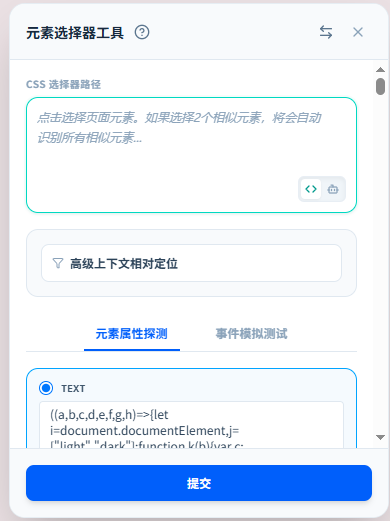
Two mode buttons sit below the input field — click to switch:
| Mode | Icon | Description |
|---|---|---|
| CSS Mode | </> | Auto-generates a CSS selector when you click an element. You can manually edit it. Press Enter to instantly find matches. |
| AI Semantic Mode | 🤖 | Describe the element in natural language and AI will analyze the page to generate a CSS selector. |
CSS Mode
Default mode. The CSS selector automatically populates the input when you click an element. You can:
- Manually edit the selector and press Enter to immediately search for matches on the page
- If matches are found, the first match is highlighted
- If no matches are found, a red error message appears below the input
- Click the copy button in the top-right corner of the input to copy the selector
AI Semantic Mode
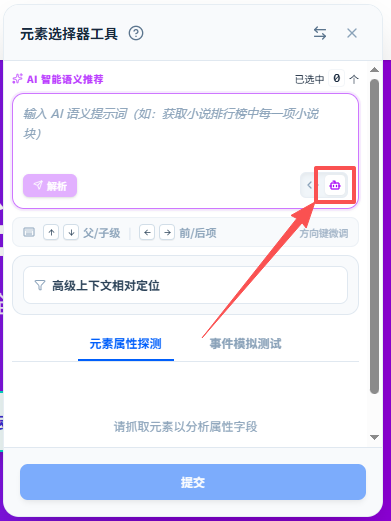
Ideal for users unfamiliar with CSS selectors. Switch to 🤖 mode, then:
- Type a natural language description, e.g.
find all novel entries in the bestseller list - Click the ✈️ Resolve button (or press Enter)
- AI analyzes the page and generates a CSS selector, then highlights matching elements
AI mode requires a configured AI model in System Settings. Make sure your API Key is set before first use.
Element Attribute Inspector
Switch to the "Element Attribute Inspector" tab to view all properties of the selected element:
- text — the element's text content
- value — current form value
- checked — checkbox/radio button state
- disabled — whether the element is disabled
- href — link URL
- src — image/media source path
- id / class — element ID and CSS class names
- Plus all native HTML attributes such as
data-*,aria-*,placeholder,role, etc.
Click the radio button next to any attribute to mark it as the "active attribute." When you submit, this attribute's value is included in the result.
Event Simulation Tester
Switch to the "Event Simulation Tester" tab to simulate various browser events directly on the selected element — verify correct behavior without running a full workflow.
Supported Event Types
| Event | Description | Configurable Parameters |
|---|---|---|
| Click | Simulate a mouse click | — |
| Double Click | Simulate a double click | — |
| Hover | Mouse enter | — |
| Unhover | Mouse leave | — |
| Focus | Element gains focus | — |
| Blur | Element loses focus | — |
| Input | Simulate text typing | Text content, newline strategy (Enter/Shift+Enter/Tab), simulated keystroke delay |
| Keypress | Simulate a key press | Key value (press the target key to record) |
| Checkbox | Toggle checkbox state | Force check / uncheck / toggle |
| Select | Pick a dropdown option | Target value, match mode (by value or by visible text) |
| Submit | Submit a form | — |
| Upload | Simulate file upload | Select a local file to inject |
| Scroll | Scroll to element | — |
After selecting an event type and filling in parameters, click "Test Trigger Event" to execute it immediately on the page.
Advanced Context-Relative Positioning
When page structure is complex with multiple nested similar blocks, use anchor mode to constrain the selection scope to a specific parent container:
- Click the "Advanced Context-Relative Positioning" button to enable anchor mode
- The input field auto-fills with the selected element's parent CSS selector (you can edit it manually)
- The tool will now search for elements only within the matched parent container
When the anchor container matches successfully, a
✓confirmation message appears and the indigo border highlights the primary anchor element.
Submitting Results
Once you're satisfied with the selection, click the "Submit" button at the bottom. The tool returns the following information to the calling node:
- The selected CSS selector (or AI semantic description)
- The active attribute name and value
- Whether batch-matching (similar mode) was used
On successful submission, the button briefly turns green and displays Submitted ✓.
FAQ
No highlight boxes appear on the page
Symptom: The tool is open but moving the mouse over the page shows no highlight feedback.
Cause: The page may be covered by a full-screen overlay, or the tab is not in the foreground.
Solution: Make sure the browser tab is active and in the foreground. Try refreshing the page and reopening the tool.
Clicking two similar elements doesn't trigger batch selection
Symptom: Clicked two structurally identical elements but only one is selected.
Cause: The two elements' DOM structures (tag hierarchy path or content complexity) exceed the similarity threshold.
Solution: Try clicking two elements that are closer to each other (e.g. adjacent items in the same list). If it still doesn't work, manually edit the CSS selector to cover the entire group.
AI mode fails to resolve
Symptom: After typing a natural language description, clicking the Resolve button returns an error.
Cause: Usually the AI model is not configured or the API Key is invalid.
Solution: Refer to the AI model configuration section and verify that the AI model is properly set up in System Settings.