Data Transform Pipeline
The Data Transform Pipeline is JTC RPA's built-in data processing engine. It executes a series of predefined operators in order to clean, transform, and format data.
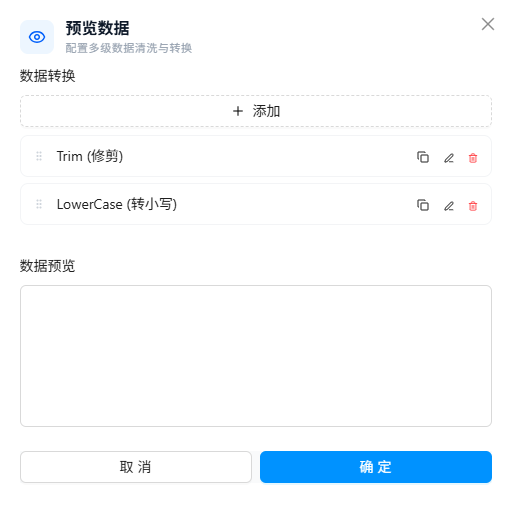
The pipeline is built into the configuration panels of the following components. Click the 👁 preview button at the bottom-right of the field to open it; the preview window includes the complete list of processing functions:
- Data Collection — in column extraction rules, cleans each collected field value
- Set Variable — pre-processes values before variable assignment
Add cleaning steps in the "Data Transform" section of the corresponding field; they execute in order.
Execution Logic
The pipeline runs steps sequentially from top to bottom. The output of each step becomes the input of the next.
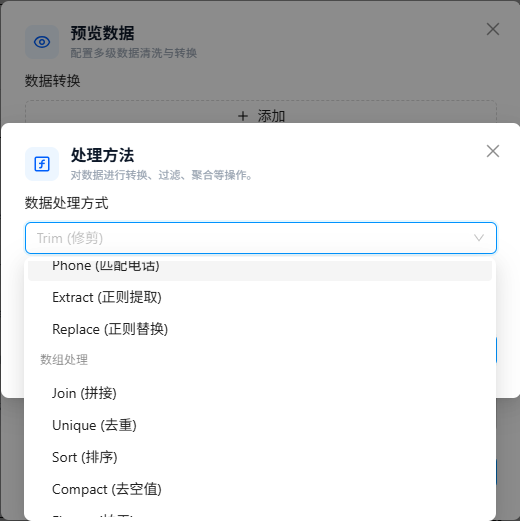
Click "Add Transform Step" to expand all available processing functions:
Operator Reference
33 operators across 7 categories.
String Processing
trim
Removes leading and trailing whitespace from a string.
| Parameter | None |
|---|
Input:  "  Order#123  "
Output: "Order#123"
upper
Converts a string to uppercase.
| Parameter | None |
|---|
Input:  "hello"
Output: "HELLO"
lower
Converts a string to lowercase.
| Parameter | None |
|---|
Input:  "Hello"
Output: "hello"
replace
String replacement.
| Parameter | Type | Description |
|---|---|---|
search | Text | Substring to find |
replace | Text | Replacement string (leave empty to remove matches) |
Input: "$1,234.00", search: "$", replace: ""
Output: "1,234.00"
substring
Extracts a substring.
| Parameter | Type | Description |
|---|---|---|
start | Number | Start index |
end | Number | End index (exclusive) |
Input: "20240101", start: 0, end: 4
Output: "2024"
split
Splits a string into an array.
| Parameter | Type | Description |
|---|---|---|
separator | Text | Delimiter (supports regex) |
Input: "Alice,Bob,Charlie", separator: ","
Output: ["Alice", "Bob", "Charlie"]
Regex Processing
regexExtract
Extracts capture groups using regex.
| Parameter | Type | Description |
|---|---|---|
pattern | Text | Regex pattern |
flags | string[] | Optional flags, e.g. ["g", "i"] |
index | Number | Index in the match result array to return (default 0) |
Input: "Order #2024-001", pattern: "\\d{4}-\\d{3}"
Output: "2024-001"
regexReplace
Replace using regex.
| Parameter | Type | Description |
|---|---|---|
pattern | Text | Regex pattern |
replace | Text | Replacement string (leave empty to delete) |
flags | string[] | Optional flags |
Input: "Price: 99 yuan", pattern: "\\d+", replace: "0"
Output: "Price: 0 yuan"
regexExtractEmail
Extracts all email addresses from text.
| Parameter | None |
|---|
Input:  "Contact sales@example.com or support@test.org"
Output: ["sales@example.com", "support@test.org"]
regexExtractPhone
Extracts phone numbers from text.
| Parameter | Type | Description |
|---|---|---|
country | Text | Country code, e.g. CN, US |
Input: "Call 13812345678", country: "CN"
Output: ["+8613812345678"]
Array Processing
join
Joins array elements into a string.
| Parameter | Type | Description |
|---|---|---|
separator | Text | Delimiter between elements |
Input: ["Alice", "Bob", "Charlie"], separator: ", "
Output: "Alice, Bob, Charlie"
unique
Removes duplicate elements from an array.
| Parameter | None |
|---|
Input:  ["A", "B", "A", "C", "B"]
Output: ["A", "B", "C"]
sort
Sorts an array.
| Parameter | Type | Description |
|---|---|---|
order | Text | asc — ascending; desc — descending |
Input: [3, 1, 2], order: "asc"
Output: [1, 2, 3]
flatten
Flattens a multi-dimensional array into one dimension.
| Parameter | None |
|---|
Input:  [[1, 2], [3, [4, 5]]]
Output: [1, 2, 3, 4, 5]
Scenario: Data collection may produce a 2D array due to DOM nesting. Use flatten to flatten it before applying scalar operations like trim.
compact
Removes falsy values from an array (null, undefined, empty string, 0, false).
| Parameter | None |
|---|
Input:  ["A", "", null, "B", undefined]
Output: ["A", "B"]
reverse
Reverses the order of array elements.
| Parameter | None |
|---|
Input:  [1, 2, 3]
Output: [3, 2, 1]
first
Returns the first element of an array.
| Parameter | None |
|---|
Input:  ["Alice", "Bob", "Charlie"]
Output: "Alice"
last
Returns the last element of an array.
| Parameter | None |
|---|
Input:  ["Alice", "Bob", "Charlie"]
Output: "Charlie"
at
Returns an array element by index (supports negative indices).
| Parameter | Type | Description |
|---|---|---|
index | Number | Index; negative counts from the end |
Input: ["A", "B", "C"], index: -1
Output: "C"
Type Conversion
toNumber
Converts a string to a number.
| Parameter | None |
|---|
Input:  "$1,234.56"
Output: 1234.56
Mechanism: Removes all characters except digits, decimal points, and minus signs, then parses with parseFloat.
currency
Extracts a currency amount. Equivalent to toNumber.
| Parameter | None |
|---|
Input:  "$99.99"
Output: 99.99
toString
Explicitly converts to a string.
| Parameter | None |
|---|
Input:  1234
Output: "1234"
toBoolean
Converts to a boolean.
| Parameter | None |
|---|
Input: 0 → false
Input: 1 → true
Input: "hello" → true
jsonParse
Parses a JSON/JSON5 string into an object.
| Parameter | None |
|---|
Input:  '{"name":"Alice","age":25}'
Output: { name: "Alice", age: 25 }
jsonStringify
Serializes an object to a JSON string.
| Parameter | None |
|---|
Input:  { name: "Alice", age: 25 }
Output: '{"name":"Alice","age":25}'
Date Processing
formatDate
Formats a timestamp or date string.
| Parameter | Type | Description |
|---|---|---|
format | Text | dayjs format string |
Input: 1704067200000, format: "YYYY-MM-DD HH:mm:ss"
Output: "2024-01-01 08:00:00"
| Format placeholder | Meaning | Example |
|---|---|---|
YYYY | 4-digit year | 2024 |
MM | Month (zero-padded) | 01 |
DD | Day (zero-padded) | 15 |
HH | Hour (24-hour) | 14 |
mm | Minute | 30 |
ss | Second | 05 |
timestamp
Converts a date string to a timestamp (milliseconds).
| Parameter | None |
|---|
Input:  "2024-01-01"
Output: 1704067200000
HTML Processing
stripHTML
Removes all HTML tags, leaving plain text.
| Parameter | None |
|---|
Input:  "<p>Order amount: <strong>$99</strong></p>"
Output: "Order amount: $99"
URL Processing
ensureURL
Validates and normalizes a URL. Returns null for invalid URLs.
| Parameter | None |
|---|
Input:  "https://example.com/path?q=1"
Output: "https://example.com/path?q=1"

Input:  "not a url"
Output: null
ensureEmail
Validates email format. Returns null for invalid emails.
| Parameter | None |
|---|
Input:  "test@example.com"
Output: "test@example.com"

Input:  "not-email"
Output: null
urlParam
Extracts a specified query parameter from a URL.
| Parameter | Type | Description |
|---|---|---|
key | Text | Parameter name |
Input: "https://example.com?page=2&size=10", key: "page"
Output: "2"
urlDomain
Extracts the domain from a URL.
| Parameter | None |
|---|
Input:  "https://www.example.com/path"
Output: "www.example.com"
urlPath
Extracts the path portion from a URL.
| Parameter | None |
|---|
Input:  "https://example.com/order/detail?id=1"
Output: "/order/detail"
Pipeline Configuration
Step Toggle
Each step has a toggle switch; when turned off, the step is skipped. Useful for temporarily disabling a cleaning stage during debugging without deleting its configuration.
Typical Cleaning Chain
Raw data: "  <p>$1,234.00</p>  "

Step 1: stripHTML  → "  $1,234.00  "
Step 2: trim       → "$1,234.00"
Step 3: currency   → 1234.00
FAQ
Array becomes empty after applying trim
Symptom: After adding a trim step to a collected list, the array is empty.
Cause: The pipeline automatically applies trim to each element of the array; this won't cause the array to become empty. Check whether the input array itself is already empty.
Solution: Add a Print Output node before the pipeline step to confirm the array's actual contents.
jsonParse fails and returns null
Symptom: After adding a jsonParse step in the pipeline, downstream data becomes null.
Cause: The input is not valid JSON (single quotes, trailing commas, unescaped characters, etc.); parsing fails and returns null instead of throwing an error.
Solution: JTC RPA uses a JSON5 parser, which supports single quotes, trailing commas, and comments. If parsing still fails, test JSON5.parse('your string') in the DevTools Console to confirm the format issue.