Element Selectors
Element selectors are the core tool for locating page elements in JTC RPA. Nearly every node that interacts with the DOM depends on selectors to specify targets.
JTC RPA offers two element locating methods:
- AI natural language selectors: Describe what element you want in plain English, and AI automatically finds it and generates a CSS selector for you. Zero experience required.
- CSS selectors: Extends browser-native CSS selectors with 8 custom pseudo-classes, covering high-frequency automation scenarios such as Shadow DOM penetration, text matching, table column positioning, and viewport filtering.
AI Natural Language Selectors (Recommended for Beginners)
Don't know what CSS selector to write? Just tell AI what you want. Type a natural language description, and AI will analyze the current page's DOM structure, automatically locate the target element, and generate a reusable CSS selector.
Prerequisites: Configure the AI Model
Before first use, configure the AI model in "System Settings." JTC RPA comes pre-configured with the following AI providers:
| Provider | Available Models |
|---|---|
| DeepSeek (Recommended) | deepseek-chat |
| OpenAI | gpt-5.5, gpt-5.4 |
| Anthropic | claude-opus-4-8, claude-sonnet-4.6 |
gemini-3.1-pro, gemini-3.5-flash | |
| Alibaba | qwen3.7-max, qwen-plus |
Configuration Steps:
- Click the extension icon to open the JTC RPA panel, then switch to the "System Settings" page
- Select the AI provider tab you want to use (DeepSeek is recommended for its cost-effectiveness)
- Enter your API Key for that provider
- Type or select a model name in the "Select Model" dropdown
- Click "Set as Default" to activate the configuration
- Click "Save Configuration"
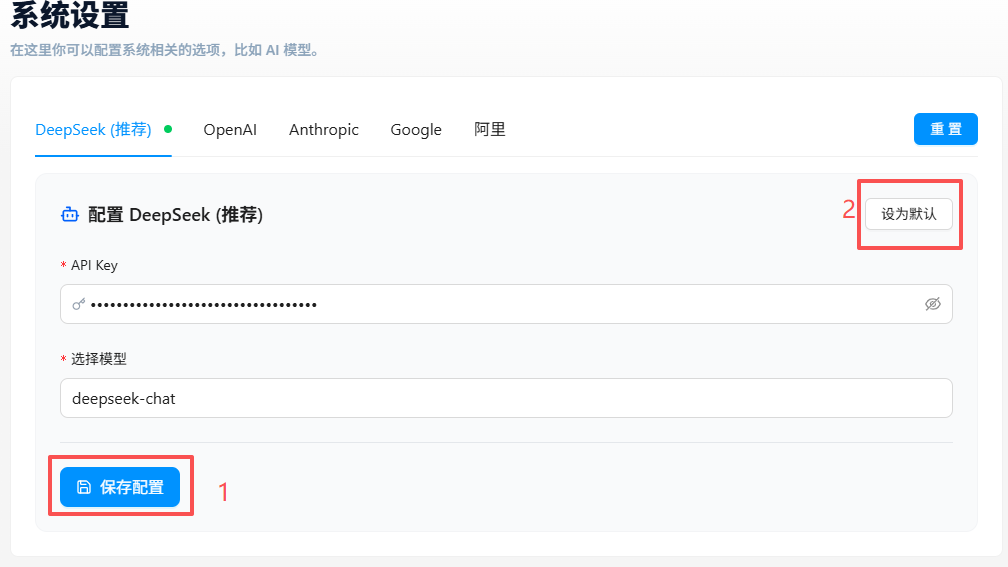
Getting an API Key: Register and create one on the corresponding provider's developer platform. For DeepSeek, visit platform.deepseek.com to get one for free.
How to Use
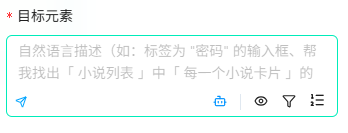
After configuring the AI model, follow these steps in the "Target Element" configuration field of any node:
- Click the 🤖 robot icon to switch from CSS mode to AI natural language mode
- Describe the element you want to locate in plain English, e.g.:
password input field,click the edit button on the row with product name "iPhone 15" - Click the ✈️ send button — AI will analyze the page and locate the target within seconds
- After locating, the target element is highlighted, and the auto-generated CSS selector appears below the input field
The auto-generated CSS selector can be used directly or manually fine-tuned in the green box. The next time you query the same element, the system reuses the cached CSS selector without calling AI again.
Common Scenarios & Examples
Scenario 1: Log Into a Website
You've opened a login page and need to fill in credentials and log in.
username input field
password input field
click the login button
Each description corresponds to one node. A "Text Input" node for username input field, the next for password input field, and finally a "Click Event" node for click the login button.
Scenario 2: Locate a Specific Row in a List or Table
You need to find a specific row among many and act on it.
click the "View Details" button on the row with order #20240601001
Clearly describe the row's identifying feature (what unique text it contains), then what you want to do to it.
Scenario 3: Fill a Multi-Field Form
Registration pages, information entry pages, etc., with multiple form fields. Each node targets one field, chained in sequence.
name input field        → "Text Input" node
phone number input field → next "Text Input" node
submit button           → "Click Event" node
For unlabeled input fields, describe them relative to nearby elements:
the verification code input field to the right of the phone number
Scenario 4: Pagination & Tab Switching
Pages with multiple pages or tabs.
click next page
switch to the "Shipped" tab
Scenario 5: Close Popups or Notifications
Ad popups, confirmation dialogs, notification bars.
close the popup
If the popup has a specific button, describe it directly:
click the cancel button in the popup
Scenario 6: Batch Scraping or Select All
Extract multiple rows from a list, or check multiple checkboxes.
all product cards
check all checkboxes with status "Pending Review"
Scenario 7: Dropdown Selection
Select an option in a dropdown.
select "Guangdong" in the province dropdown
Scenario 8: Locate by Index
When you have multiple items with the same structure and only want the Nth one.
click the third product card
CSS Selectors (Advanced)
If you're familiar with CSS selectors, or need more precise and stable element targeting, you can write CSS selectors directly.
Switching Modes
Click the 🤖 icon in the target element input field to toggle between AI mode and CSS mode. In CSS mode, the input placeholder reads Enter CSS selector....
Standard CSS Selectors
If you're already familiar with CSS selectors, skip to the next section. Below are the most commonly used types in automation:
| Type | Syntax | Example | Description |
|---|---|---|---|
| Tag selector | tag | div | Matches all <div> elements |
| Class selector | .class | .btn-primary | Matches elements whose class includes btn-primary |
| ID selector | #id | #submit | Matches the element with id submit |
| Attribute selector | [attr=val] | [data-id="123"] | Matches elements with the specified attribute value |
| Descendant selector | A B | form input | Matches all <input> inside <form> |
| Child selector | A > B | ul > li | Matches direct children |
| Adjacent sibling | A + B | .label + input | Matches the immediately following sibling |
| Pseudo-class | :first-child | li:first-child | Matches the first <li> |
| Universal | * | div * | Matches all elements |
Custom Pseudo-Classes
The following pseudo-classes are exclusive to JTC RPA and are not supported by native browsers. They can be chained after any selector just like standard pseudo-classes.
:shadow — Shadow DOM Penetration
Crosses Shadow DOM boundaries, switching the query context to the element's shadowRoot interior. Supports single-level penetration and deep recursive modes.
component-tag:shadow .internal-element
component-tag:shadow(deep) .internal-element
| Syntax | Parameter | Description |
|---|---|---|
:shadow | None | Single-level penetration: switches to the current matched element's ShadowRoot for further querying |
:shadow(deep) | deep | Deep penetration: recursively traverses the entire subtree (light DOM and Shadow DOM), collecting all nested ShadowRoot contexts |
JTC RPA has built-in attachShadow interception patches, supporting both mode: 'open' and mode: 'closed' ShadowRoots.
Example: Suppose the page has the following custom component:
<product-card>
  #shadow-root (open)
    <div class="title">Product Name</div>
    <span class="price">$99.00</span>
    <button class="buy-btn">Buy Now</button>
</product-card>
/* Single-level penetration: cross Shadow DOM to get the price */
product-card:shadow .price
Nested Shadow DOM scenario: Suppose components have nested Shadow DOM structures:
<app-root>
  #shadow-root
    <product-list>
      #shadow-root
        <product-card>
          #shadow-root
            <span class="price">$99.00</span>
        </product-card>
    </product-list>
</app-root>
/* Method 1: Layer-by-layer penetration, one :shadow per level */
app-root:shadow product-list:shadow product-card:shadow .price

/* Method 2: Use :shadow(deep) to cross all levels at once */
app-root:shadow(deep) .price
:shadow(deep)recursively traverses the entire subtree, matching target elements in all nested ShadowRoots within range. If the hierarchy is known, layer-by-layer penetration performs better.
:contains — Filter by Text Content
Filters elements whose textContent contains the specified string.
div:contains('Order #')
a:contains(Buy Now)
| Syntax | Parameter | Description |
|---|---|---|
:contains('text') | String (required) | Matches elements whose text content contains the string; case-sensitive |
Example: Suppose the page has the following list:
<ul class="order-list">
  <li>Order #001 — Pending</li>
  <li>Order #002 — Shipped</li>
  <li>Order #003 — Shipped</li>
  <li>Order #004 — Pending</li>
</ul>
/* Only match items whose text contains "Shipped" */
li:contains('Shipped')

/* Can be chained with other selectors */
.order-list li:contains('Shipped'):in-viewport
:text — Text Filter (Alias for :contains)
Completely identical to :contains; the two are interchangeable.
span:text('Shipped')
:self — Row Element Reference in Data Collection
Used exclusively in the column extraction rules of the Data Collection component to reference the current row element itself. Not recommended for use in other nodes.
:self
:self(.highlight)
| Syntax | Parameter | Description |
|---|---|---|
:self | None | References the row element itself, extracting its text content |
:self(selector) | CSS selector (optional) | Finds descendant elements within the row element matching the parameter selector |
Example: Using .product-item as the row selector, each row is a product card:
<div class="product-item">
  <span class="title">Wireless Mouse</span>
  <span class="price">$99</span>
  <span class="tag highlight">Hot</span>
</div>
In column extraction rules:
/* Get the row element's own text → "Wireless Mouse $99 Hot" */
:self

/* Find descendant with .highlight inside the row → "Hot" */
:self(.highlight)

/* Equivalent to searching directly within the row (recommended) */
.tag.highlight
:selfmay have unexpected behavior in nodes other than Data Collection; use is not recommended elsewhere.
:col — Table Column Matching
Designed specifically for <table> elements, locates <td> / <th> cells based on header column names. Automatically handles colspan logic.
td:col('Product Name')
td:col('!Price')        strict mode
td:col('Name, Phone')   multi-column matching
| Syntax | Parameter | Description |
|---|---|---|
:col('column-name') | Column name string (required) | Fuzzy matches header text |
:col('!column-name') | ! prefix | Strict mode, only exact header matches |
:col('ColA, ColB') | Comma-separated | Matches any one of the specified columns |
Example: Given the following table:
<table class="order-table">
  <thead>
    <tr>
      <th>Order #</th>
      <th>Product Name</th>
      <th>Quantity</th>
      <th>Price</th>
      <th>Status</th>
    </tr>
  </thead>
  <tbody>
    <tr>
      <td>001</td>
      <td>Wireless Mouse</td>
      <td>2</td>
      <td>$99</td>
      <td>Shipped</td>
    </tr>
    <tr>
      <td>002</td>
      <td>Mechanical Keyboard</td>
      <td>1</td>
      <td>$499</td>
      <td>Pending</td>
    </tr>
  </tbody>
</table>
/* Locate all cells in the "Product Name" column */
td:col('Product Name')

/* Locate cells in the "Price" column containing $ — essentially the price data */
td:col('Price')
:in-viewport — Only Match Elements in the Visible Area
Filters elements currently visible within the browser viewport; invisible elements are excluded.
div.item:in-viewport
| Syntax | Parameter | Description |
|---|---|---|
:in-viewport | None | Only keeps elements that intersect with the viewport. Elements with display:none or zero dimensions are also excluded |
Use case: Scrape visible items in infinite-scroll lists, or only operate on elements currently in the user's view to avoid triggering lazy loading.
:not-fetched — One-Time Deduplication
A memory-based deduplication filter that ensures the same DOM node is only matched once. Suitable for use with element monitoring to avoid processing the same element repeatedly.
li:not-fetched
li:not-fetched(order-list)
| Syntax | Parameter | Description |
|---|---|---|
:not-fetched | None (default namespace default) | Element enters a memory pool after being matched; excluded on subsequent matches |
:not-fetched(namespace) | Namespace string (optional) | Different namespaces have independent memory pools |
Note: The memory pool is implemented with WeakSet and is automatically cleared when the page closes. :not-fetched also excludes invisible elements with offsetHeight or offsetWidth of zero.
Typical scenario: Used with the Element Monitor trigger to perform one-time operations on newly appearing DOM nodes (e.g., scrape data then skip on subsequent detections):
<!-- Monitor container; list items are added over time -->
<ul class="message-list">
  <li data-id="1">New order #001, please process ASAP</li>
  <li data-id="2">New order #002, please process ASAP</li>
  <!-- New item #003 appears in the next polling cycle -->
  <li data-id="3">New order #003, please process ASAP</li>
</ul>
/* Each polling cycle only matches elements not yet processed */
.message-list li:not-fetched

/* Different monitoring scenarios use independent namespaces */
.message-list li:not-fetched(order-monitoring)
.error-list li:not-fetched(error-monitoring)
The first query matches #001 and #002 and marks them as processed; on the next polling cycle, #001 and #002 are filtered out, returning only the newly added #003.
Combining Selectors
Custom pseudo-classes can be freely chained with standard selectors:
table.order-table tr:in-viewport td:col('Status'):contains('Completed')
This selector means: in the table with class="order-table" → find rows visible in the viewport → locate cells in the "Status" column → keep only those whose text contains "Completed".
Verifying Selectors
Custom pseudo-classes and AI natural language selectors cannot be validated in browser-native APIs (like querySelectorAll) or in the DevTools Elements panel. Test them in the configuration panels of the following components instead:
- Data Collection node: enter selectors or AI natural language descriptions in the "Target Element" configuration
- Set Variable node: enter selectors or AI natural language descriptions in the "Target Element" field
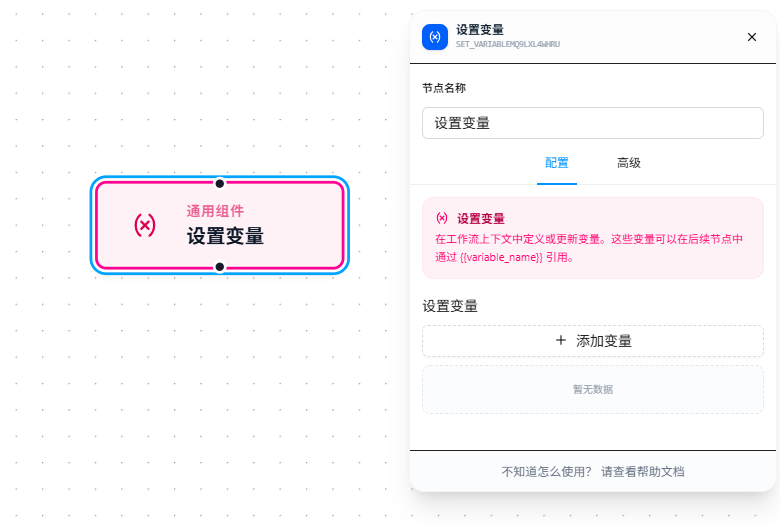
- CSS mode: After entering a selector, click the 👁 preview button at the bottom-right of the field to see the matched element list in real time.
- AI mode: After entering a description, click the ✈️ send button — once AI locating succeeds, the generated CSS selector and match results are displayed automatically.
- Neither method requires running the workflow to verify.
FAQ
Testing with querySelectorAll in the browser Console doesn't work
Symptom: Using document.querySelectorAll('div:contains(\'Order\')') in the Console produces a syntax error or no matches. CSS selectors generated by AI mode also can't be verified through native APIs.
Cause: Custom pseudo-classes are JTC RPA's extended syntax that browser-native APIs cannot recognize.
Solution: Test selectors in the configuration panel of the Data Collection or Set Variable nodes. The configuration panel includes the custom pseudo-class engine and displays match results in real time.
AI natural language mode can't find the target element
Symptom: You described an element, but AI returns an error or no matches.
Cause: Common reasons include: AI model not configured, description not specific enough, or the page's DOM structure differs significantly from the description (e.g., dynamically rendered popups).
Solution:
- Check whether the AI model is configured in "System Settings" (API Key and model name);
- Make the description more specific by including the element's text content, tag type, or spatial position (refer to the examples above);
- If AI returned an element but it doesn't match expectations, switch to CSS mode and manually fine-tune the auto-generated CSS selector.
Elements not found after :shadow penetration
Symptom: Using :shadow, but the subsequent selector reports "element not found."
Cause: The selector path after :shadow doesn't match the actual DOM structure, or the :shadow level is insufficient (a layer in a nested Shadow DOM wasn't penetrated).
Solution: Expand the Shadow DOM tree in DevTools, verify the actual structure layer by layer, and ensure each Shadow DOM boundary has a corresponding :shadow (or use :shadow(deep) to cross all levels at once).