URL Match
The URL Match trigger automatically starts a workflow when the browser navigates to a specified page. It fires after the page finishes loading — no human action required.
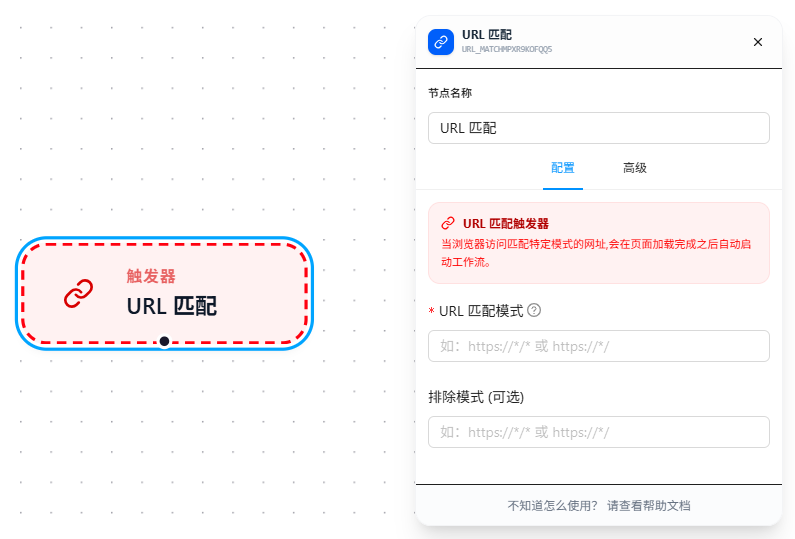
Configuration Steps
- Drag the "URL Match" node onto the canvas as the workflow starting point
- Fill in "URL Match Pattern" with the page addresses to match
- Optionally fill in "Exclude Pattern" to filter out unwanted sub-paths
- Connect subsequent nodes and save the workflow
- The workflow starts automatically when the browser navigates to a matching page
Parameter Reference
URL Match Pattern (Required)
Specifies which pages trigger the workflow. Supports multiple rules, one per line. Follows Chrome match patterns.
https://example.com/orders/*
https://*.taobao.com/item/*
Exclude Pattern (Optional)
Within the scope covered by the match rules, excludes pages you don't want to trigger. Also supports multiple rules, one per line.
https://example.com/orders/admin/*
https://example.com/orders/login
Example: Only Monitor the Orders Page, Exclude the Admin Panel
You want to automatically run a workflow on the order list page and order detail page, but not on the admin management page.
URL Match Pattern:
https://admin.example.com/orders/*
Exclude Pattern:
https://admin.example.com/orders/admin/*
Result:
https://admin.example.com/orders          → Triggers
https://admin.example.com/orders/123      → Triggers
https://admin.example.com/orders/admin    → Does not trigger (excluded)
https://admin.example.com/dashboard       → Does not trigger (doesn't match)
Use Cases
URL Match is ideal for scenarios where entering a specific page should automatically do something:
- Auto check-in when opening the company OA homepage
- Auto-scrape data when entering an order detail page
- Auto-screenshot when visiting a competitor's website
- Auto-trigger on route changes in SPA single-page applications (e.g., navigating from list to detail page)
URL Match triggers after the page finishes loading. For SPA single-page applications, URL changes during route navigation also trigger — no page refresh needed.
FAQ
Using * wildcard makes the trigger scope too broad
Symptom: Filled in https://example.com/*, and unrelated sub-pages also trigger the workflow.
Solution: Use "Exclude Pattern" to filter out unwanted paths. Keep the "URL Match Pattern" broad, and use "Exclude Pattern" to precisely cut out what you don't need.
SPA route changes aren't triggering
Symptom: In a single-page application, navigating from a list page to a detail page changes the URL but the workflow doesn't start.
Cause: SPA route changes don't trigger a full page navigation in the browser; in some cases the extension may not capture it.
Solution: Confirm the workflow has been saved; if it still doesn't trigger, try refreshing the page to verify.