Scheduled Trigger
The Scheduled trigger automatically starts a workflow at a configured execution frequency — no human intervention needed.
Overview
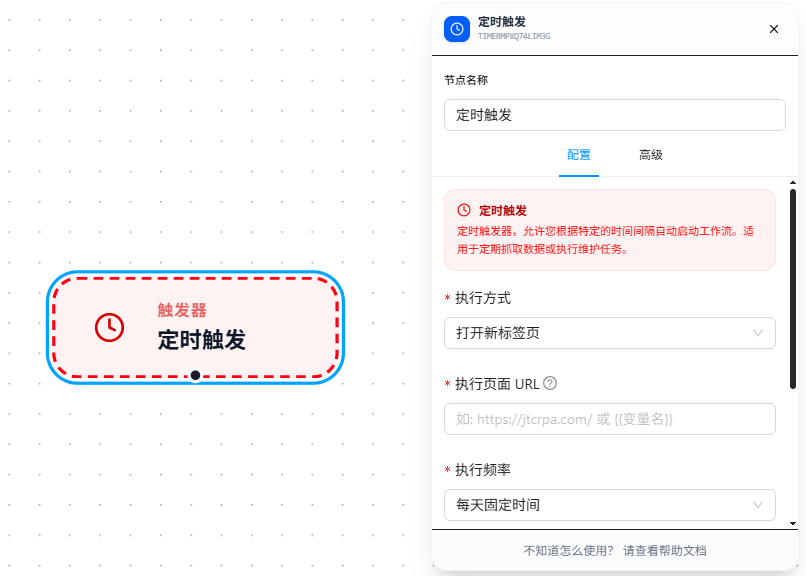
Configure timing rules through the frequency selector — no need to manually write Cron expressions — the panel auto-generates and live-previews the Cron expression based on your selections. Four frequency modes are supported: every N minutes, every N hours, daily at a fixed time, and weekly on specific days.
Quick Start
Example: Automatically open Baidu's homepage every 5 minutes and show a system notification.
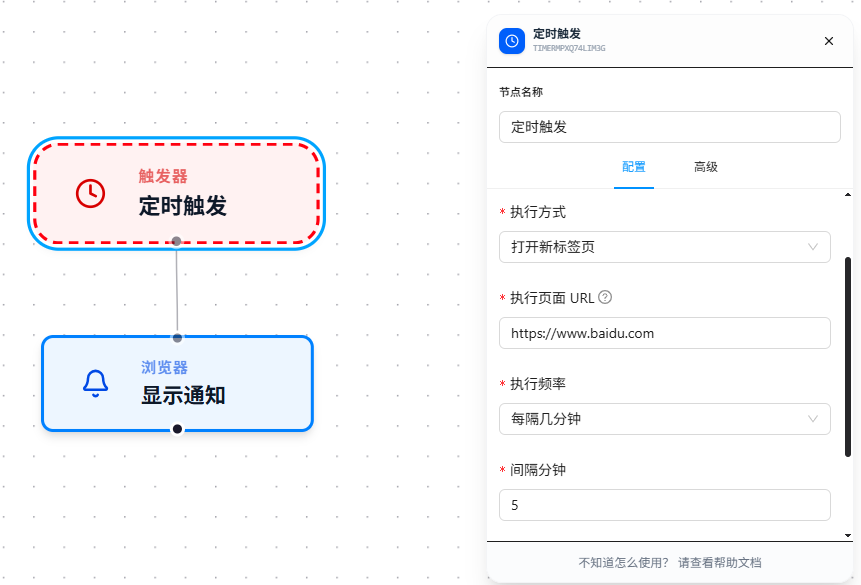
- Drag the "Scheduled Trigger" node onto the canvas, set frequency to "Every N Minutes," interval to
5 - Set execution mode to "Open New Tab," Execution Page URL to
https://www.baidu.com - Drag in the Show Notification node and connect it to the trigger
- After saving, Baidu will open automatically every 5 minutes with a notification
- To stop the scheduled execution, toggle off "Enable Trigger" in the Scheduled Trigger node's configuration panel
Parameter Reference
| Parameter | Type | Default | Description |
|---|---|---|---|
| Frequency | Dropdown | — | Required. minutes — every N minutes; hourly — every N hours; daily — daily at a fixed time; weekly — weekly at a fixed time |
| Interval Minutes | Number | — | Required when frequency is minutes, range 1–59 |
| Interval Hours | Number | — | Required when frequency is hourly, range 1–23 |
| Execution Time | time | — | Required when frequency is daily or weekly, format HH:mm |
| Execution Days | Multi-select | — | Required when frequency is weekly, multi-select Monday through Sunday (1–6, 0 for Sunday) |
| Execution Mode | Dropdown | — | Required. Open New Tab / Match Open Page |
| Execution Page URL | Text | — | Required for "Open New Tab" mode |
| Match Pattern | Text | — | Required for "Match Open Page" mode; see URL Match Patterns |
| Activate Tab | Toggle | false | Whether to automatically switch to the target tab when triggered |
Auto-Generated Cron Rules
| Frequency | Generated Cron | Example |
|---|---|---|
| Every 5 min | */5 * * * * | Executes every 5 minutes |
| Every 2 hours | 0 */2 * * * | Executes at the top of every 2nd hour |
| Daily at 9:30 | 30 9 * * * | Every day at 9:30 AM |
| Mon/Wed/Fri at 9:00 | 0 9 * * 1,3,5 | Monday, Wednesday, Friday at 9:00 AM |
Execution Mode
Triggers support two execution modes, determining which page the workflow runs on:
| Mode | Description | Configuration Required |
|---|---|---|
| Open New Tab | Opens a new browser tab, loads the specified URL, then executes | Execution Page URL (required) |
| Match Open Page | Matches an already-open tab by URL pattern, executes on the matched page | Match Pattern (Chrome match patterns format; see URL Match Patterns) |
The Execution Page URL supports referencing received data via {{variableName}} (see Variables), enabling dynamic target page selection. Match patterns are fixed and do not support variables.
FAQ
The scheduled task didn't execute at the configured time
Symptom: The configured time has passed, but the workflow didn't start.
Cause: The browser is in a sleep state, or the tab isn't active, causing the browser to throttle the timer.
Solution: Enable the "Activate Tab" toggle to ensure auto-focus when triggered; confirm that the browser's background running permission is enabled.