Network Intercept
The Network Intercept trigger listens for network requests made by the browser and automatically starts a workflow when a target request is matched. You don't need to know when the request will be made in advance — the trigger captures it the moment the browser initiates the request.
Network Intercept triggers when the request is initiated, not when the response is returned. If the workflow needs to use response data, pair it with the Wait HTTP node to wait for the response to complete.
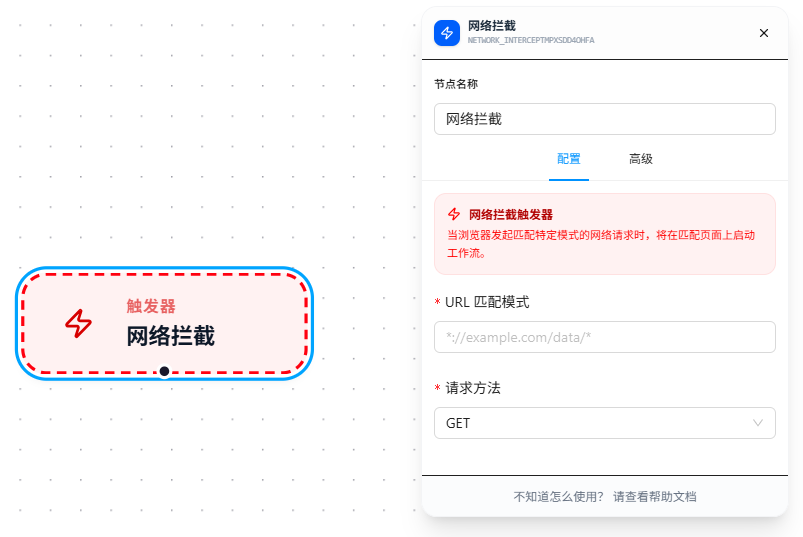
Configuration Steps
Example: Listen for an API request → wait for the response → scrape response data.
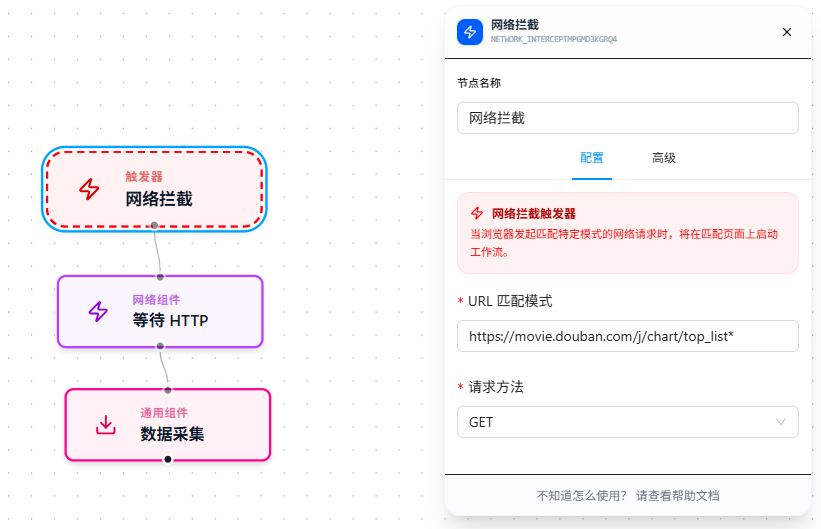
- Drag the "Network Intercept" node onto the canvas as the workflow starting point
- Fill in "URL Match Pattern" to specify the request addresses to intercept
- Select "HTTP Method" to specify which of GET / POST / PUT / DELETE to intercept
- Drag in the Wait HTTP node to wait for the matched request to complete
- Drag in the Data Collection node to extract the needed fields from the response data
- After saving, the workflow starts automatically when the browser makes a matching request
Parameter Reference
URL Match Pattern
Specifies the request URLs to intercept. Supports multiple rules, one per line. Follows Chrome match patterns.
https://api.example.com/v1/orders*
https://api.example.com/v1/products*
This matches the actual request address made by the browser (the URL visible in the DevTools Network panel), not the current page's address.
HTTP Method
Select the HTTP method to intercept:
GET      — Retrieve data (list queries, detail queries)
POST     — Submit data (create orders, submit forms)
PUT      — Update data (modify information)
DELETE   — Delete data
Only one method can be selected at a time. To intercept both GET and POST on the same endpoint, configure two Network Intercept nodes.
Use Cases
Network Intercept is ideal for scenarios that bypass the frontend UI and retrieve data directly from the API layer:
- Page data is encrypted in rendering and raw values aren't visible in the DOM — intercept the API to get plaintext responses
- Business data is submitted via POST and you need to do some processing before or after submission
- A page polls an API periodically and you want to automatically scrape the latest data on each poll
If you just want to monitor page URL changes, URL Match is simpler.
FAQ
I can see the request in the Network panel but the intercept doesn't trigger
Symptom: The request is visible in the DevTools Network panel, but the interceptor didn't fire.
Cause: The URL match pattern didn't hit the actual request path, or the HTTP method doesn't match, or the request was made before the interceptor registered.
Solution:
- Find the target request in the Network panel, copy the full URL, and cross-check against the URL match rules;
- Confirm the HTTP method (GET/POST/PUT/DELETE) matches your configuration;
- Ensure the interceptor is active after the page refreshes — save the workflow first, then refresh the page to trigger the request.