Manual Execute
The Manual Execute trigger is the most common workflow entry point, supporting two launch methods:
- Manual Execution: Click the "Run" button in the top toolbar of the canvas to run directly — ideal for testing and ad-hoc tasks
- Called by Other Workflows: Invoked via the Call Flow node, with parameter passing. After the sub-workflow completes, results can be returned to the caller via the Return node
A workflow can contain multiple Manual Execute nodes, each configurable with different execution pages and variable names to receive calls from different sources.
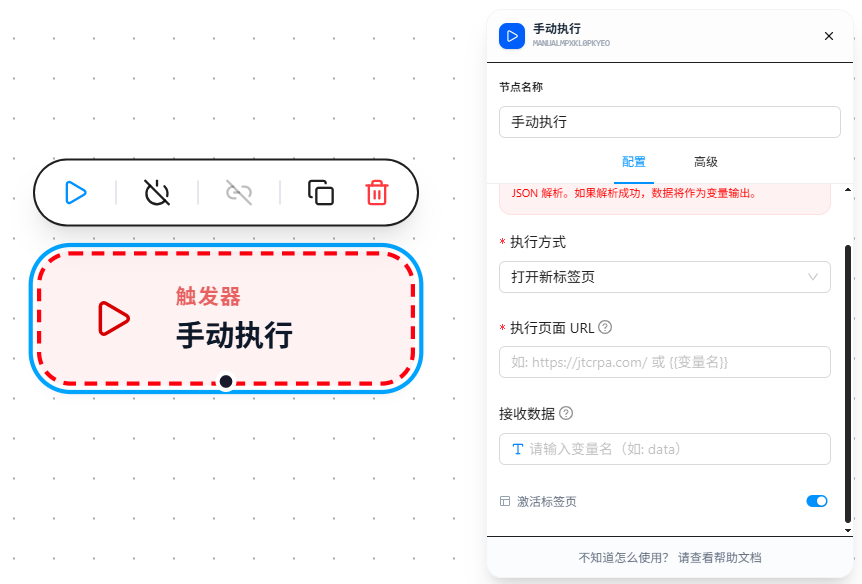
Quick Start
- Drag the "Manual Execute" node onto the canvas as the workflow entry point
- Configure the "Execution Mode": open a new tab or match an already-open page
- To receive parameters, fill in a variable name in "Receive Data" (e.g.,
data). The JSON data passed by the caller will be stored in that variable - If the caller passes a URL, reference it in "Execution Page URL" using
{{data.url}}to run on the specified page - Click the "Run" button to test, or save and be called by other workflows
Parameter Reference
| Parameter | Type | Default | Description |
|---|---|---|---|
| Execution Mode | Dropdown | — | Required. Open New Tab — opens a new tab, requires Execution Page URL; Match Open Page — matches an already-open page by URL, requires Match Pattern |
| Execution Page URL | Text | — | Required for "Open New Tab" mode. Supports referencing passed data via {{variableName}} for dynamic URLs |
| Match Pattern | Text | — | Required for "Match Open Page" mode. Chrome match patterns format; see URL Match Patterns |
| Receive Data | Text | — | Variable name to store the caller's passed data, e.g., data. The JSON data passed via the Call Flow node is injected into this variable |
| Activate Tab | Toggle | false | Whether to automatically switch to the target tab when triggered |
Execution Mode
Triggers support two execution modes, determining which page the workflow runs on:
| Mode | Description | Configuration Required |
|---|---|---|
| Open New Tab | Opens a new browser tab, loads the specified URL, then executes | Execution Page URL (required) |
| Match Open Page | Matches an already-open tab by URL pattern, executes on the matched page | Match Pattern (Chrome match patterns format; see URL Match Patterns) |
The Execution Page URL supports referencing received data via {{variableName}} (see Variables), enabling dynamic target page selection. Match patterns are fixed and do not support variables.
Receiving Parameters & Dynamic URL
When a trigger receives data, the data is parsed as JSON and stored in the variable configured in "Receive Data" (e.g., data). It can then be referenced anywhere in the workflow using {{ }} expressions.
Typical Usage: When the received data includes a url field, you can dynamically specify the target page in "Execution Page URL" via the variable.
Example received data:
{
  "url": "https://shop.example.com/order/12345",
  "orderId": "12345"
}
Trigger configuration:
Receive Data: data
Execution Page URL: {{data.url}}
During workflow execution, nodes such as Open Page can also reference fields like {{data.orderId}}.