Keyboard Shortcut
Bind a keyboard shortcut to launch a workflow with a single keystroke on matching pages. Ideal for frequent, repetitive tasks — no need to switch to the panel or find a menu.
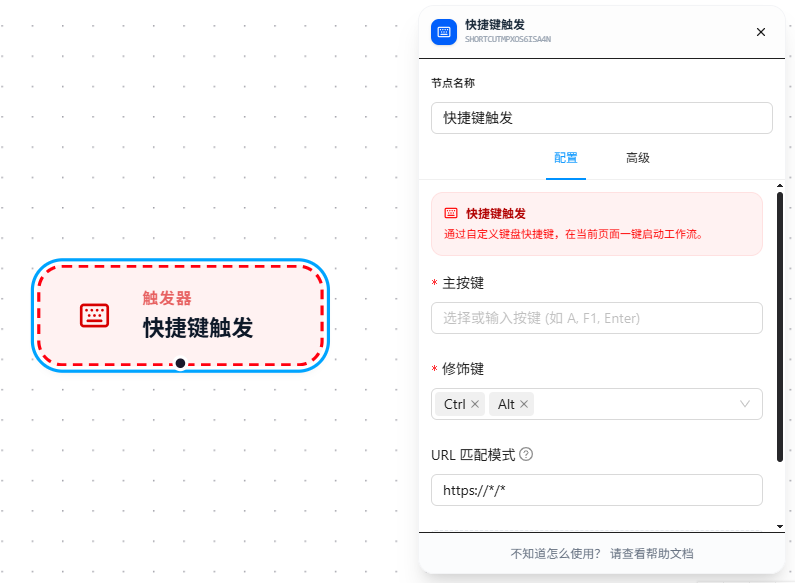
Configuration Steps
- Drag the "Keyboard Shortcut" node onto the canvas as the workflow starting point
- Select a main key from the dropdown, e.g.,
A - Check modifier keys, e.g.,
Ctrl+Shift - The configuration panel shows a live preview of the current key combination:
Ctrl + Shift + A - Optionally fill in "URL Match Pattern" to limit which pages the shortcut works on
- After saving, press the shortcut on a matching page to start the workflow
Parameter Reference
Main Key
Supported key range:
Letters   A - Z
Digits    0 - 9
Function  F1 - F12
Arrows    ↑ ↓ ← → (ArrowUp / ArrowDown / ArrowLeft / ArrowRight)
Other     Enter, Space, Tab, Escape, Backspace
Modifier Keys
Multiple can be selected; at least one is required:
Ctrl           — Ctrl on Windows / Control on Mac
Shift          — Shift key
Alt            — Alt on Windows / Option on Mac
Command / Win  — Command on Mac / Win key on Windows
Avoid common browser and system shortcuts (e.g., Ctrl+S for save, Ctrl+W for close tab). Use three-key combinations (e.g., Ctrl+Shift+A) to significantly reduce the chance of conflicts.
URL Match Pattern
Limits which pages the shortcut works on. Supports multiple rules, one per line. Follows Chrome match patterns.
https://example.com/orders/*
https://*.taobao.com/*
Leave empty for the shortcut to work on all pages.
Usage Example
Example: Same Shortcut Doing Different Things on Different Pages
Suppose you only have one muscle-memory shortcut Ctrl+Shift+D, but you need different automation on the orders page and the products page.
Workflow A — Export order data on the orders page:
Shortcut: Ctrl+Shift+D
URL Match:
  https://admin.example.com/orders/*

→ Press Ctrl+Shift+D on the order list page to auto-export order data
Workflow B — Export product data on the products page:
Shortcut: Ctrl+Shift+D
URL Match:
  https://admin.example.com/products/*

→ Press Ctrl+Shift+D on the product list page to auto-export product data
Same Ctrl+Shift+D, differentiated by URL matching to determine which workflow fires on which page. On unrelated pages like Baidu, neither workflow will trigger.
Use Cases
Keyboard shortcuts are ideal for operations repeated many times a day:
- In a customer service system,
Ctrl+Shift+Fto one-click fill common reply templates - On an order page,
Ctrl+Shift+Dto one-click export current order data - On any page,
Ctrl+Shift+Ito one-click screenshot and save
For fully automatic, no-keypress-needed scenarios, use passive triggers like Scheduled Trigger or Element Monitor.
FAQ
Nothing happens when I press the shortcut
Symptom: Configured a shortcut, but pressing it doesn't start the workflow.
Cause: The shortcut conflicts with a browser or system native shortcut and is intercepted first.
Solution: Switch to a more complex key combination (three or even four keys), e.g., Ctrl+Shift+Alt+K. You can also go to chrome://extensions/shortcuts in Chrome's address bar to see all currently assigned extension shortcuts.
The key I want isn't in the dropdown list
Symptom: The desired key doesn't appear in the main key dropdown.
Solution: The main key field supports manual input — just type the key name you want directly in the input field.