Element Monitor
The Element Monitor trigger watches for DOM changes on the page — automatically triggering a workflow when child elements are added/removed or attributes change. Ideal for scenarios that require real-time response to page content changes.
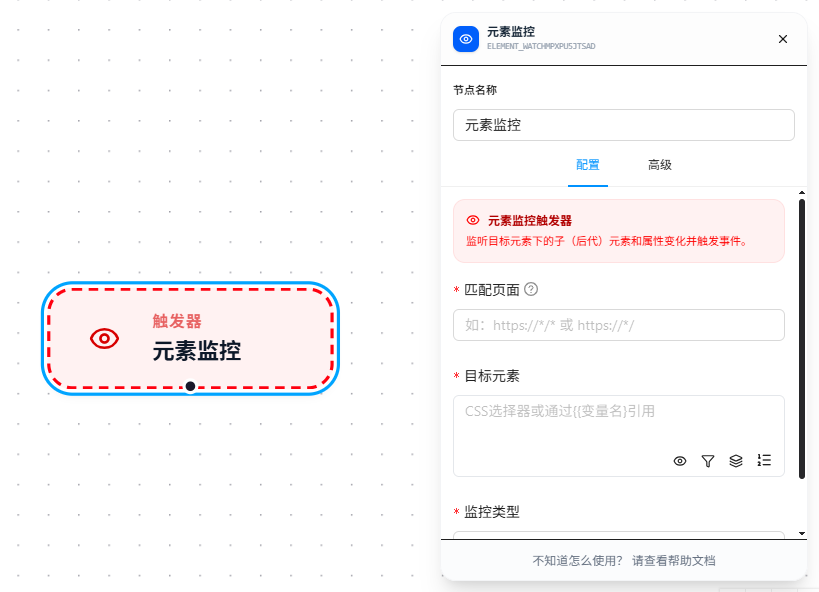
Usage Examples
Scenario 1: Monitor a chat panel and auto-scrape new messages
In a customer service system, new messages keep appearing in the chat panel. You want to automatically log each new message as it appears.
Element Monitor → Data Collection → Save to Database
Configuration: set Match Page to https://chat.example.com/*, Target Element to .message-list (the message list container), Monitor Type to "Child Element Changes." When a new child element (a new <li> message) is added under .message-list, the workflow starts automatically to scrape it.
Scenario 2: Monitor an order list and take a screenshot when status labels change
On an order list page, each order's status label changes from "Pending" to "Completed." You want to capture a screenshot when the change occurs.
Element Monitor → Screenshot
Configuration: set Target Element to .order-status (the status label container), Monitor Type to "Child Attribute Changes." When the status label's class attribute changes, a screenshot is taken automatically.
Parameter Reference
| Parameter | Type | Default | Description |
|---|---|---|---|
| Match Page | Text | — | Chrome match patterns, limits the monitored page scope. Required. See URL Match Patterns |
| Target Element | CSS Selector | — | The parent container element to monitor, required. Supports AI Natural Language Mode |
| Monitor Type | Dropdown | — | childList — child element additions/removals; attributes — child element attribute changes |
FAQ
Elements are changing but the monitor isn't triggering
Symptom: Page elements are visibly changing, but the workflow doesn't start.
Cause: The Match Page URL doesn't match the actual page, or the target element selector points to the wrong parent element.
Solution: First confirm that "Match Page" covers the current page; then use the 👁 preview button to verify the target element selector hits the correct DOM node.