Context Menu
The Context Menu trigger registers a workflow as a browser right-click menu item. Users can right-click on a page, see your configured menu item, and click it to start the corresponding workflow.
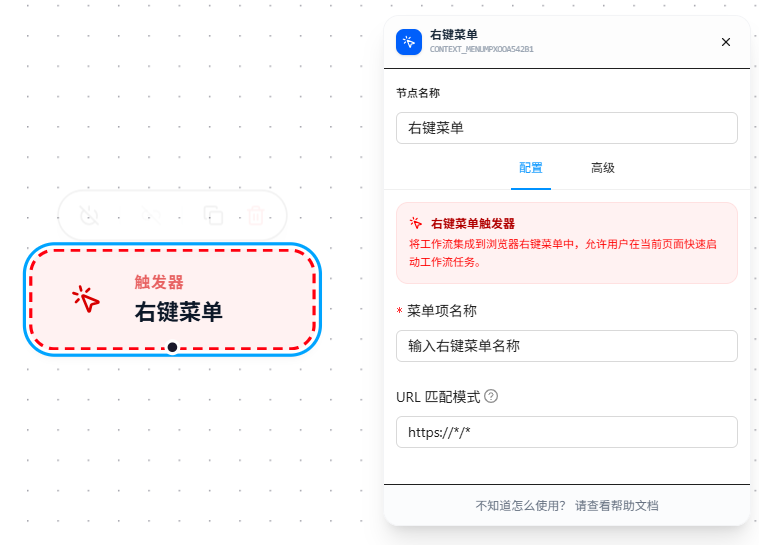
Configuration Steps
- Drag the "Context Menu" node onto the canvas as the workflow starting point
- Fill in the "Menu Item Name" — the text displayed in the right-click menu, e.g.,
Scrape Current Row,One-Click Form Fill - Optionally fill in "URL Match Pattern" to limit which pages show the menu item (leave empty for all pages)
- Connect subsequent nodes and save the workflow
After saving, right-clicking on a matching page will show your configured option in the menu.
Parameter Reference
Menu Item Name
The text displayed in the right-click menu. This name is directly exposed to users, so it's recommended to use a name that clearly communicates the function at a glance:
Scrape Current Row       → Clear — users know clicking it will scrape data
One-Click Form Fill      → Clear — users know clicking it will fill a form
Workflow 1               → Unclear — no one knows what it does
URL Match Pattern
Limits which pages the right-click menu appears on. Supports multiple rules, one per line. Follows Chrome match patterns specification.
https://example.com/orders/*
https://*.taobao.com/*
Each <scheme>://<host><path> can use * wildcards:
https://*/*— all HTTPS pageshttps://example.com/*— all pages under example.comhttps://example.com/orders— only the exact page example.com/orders*://*.example.com/*— any protocol, any subdomain
Leave empty to show the menu item on all pages.
Example: Only Show Menu on the Order Management Page
Suppose you want to create a "One-Click Export Orders" workflow that only appears when right-clicking on the company's order management page. Your order system is deployed at https://admin.example.com/orders, with detail pages like https://admin.example.com/orders/123.
Step 1: Fill in the URL match rule
https://admin.example.com/orders/*
Step 2: Right-click on a matching page
Open https://admin.example.com/orders or https://admin.example.com/orders/123, right-click → "One-Click Export Orders" appears in the menu.
Step 3: Right-click on a non-matching page
Open https://admin.example.com/dashboard or https://www.baidu.com, right-click → "One-Click Export Orders" does not appear.
This way, the feature only shows when you're actually on the order management page, without cluttering other pages.
Use Cases
Context Menu is suitable for automation scenarios that require human judgment and manual triggering:
- You see an abnormal row in the order list — right-click "Mark as Abnormal" to let the workflow handle it
- You spot useful information on a page — right-click "Scrape & Export" to save the data
- You repeat the same operation many times a day on the same page — right-click "One-Click Process" is faster than switching to the extension panel
For fully automatic, no-human-intervention scenarios, use passive triggers like Scheduled Trigger or Element Monitor instead.
FAQ
The configured option doesn't appear in the right-click menu
Symptom: Configured a menu item name, but can't find it when right-clicking.
Cause: The workflow hasn't been saved, or the URL match pattern restricts the page scope and the current page URL doesn't match.
Solution: Confirm the workflow has been saved; check whether the URL match pattern covers the current page; if unsure, leave it empty first to make the menu item appear on all pages, verify it's visible, then add URL restrictions.
Multiple workflows have context menu items — will the menu be cluttered?
Symptom: Concerned that right-click menu items from multiple workflows will be piled together and hard to find.
Solution: Each workflow independently registers its own menu items without interfering with others. It's recommended to give each workflow's menu item a unique, descriptive name so you can tell at a glance which function it is.