Wait Element
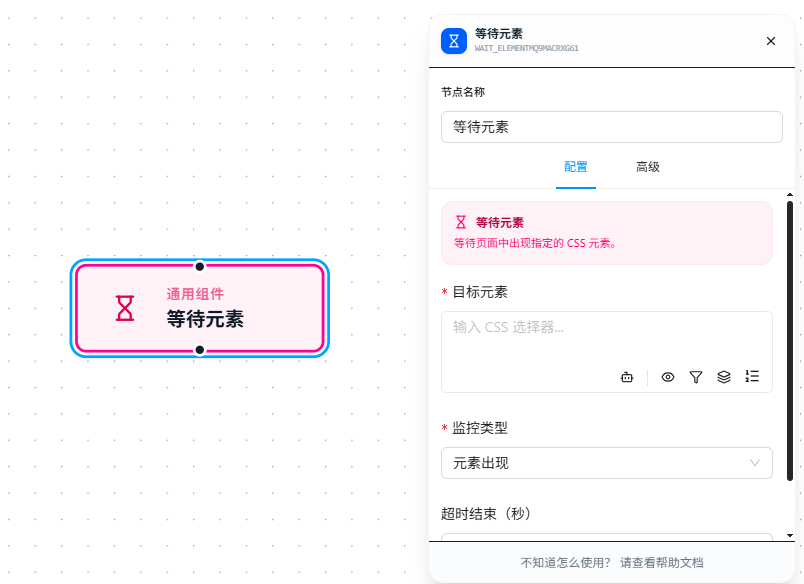
The Wait Element node pauses workflow execution until a specified element appears or disappears, then continues. It solves the problem of "the element hasn't rendered yet but the workflow already moved past it" in dynamic pages.
Usage Examples
Scenario: Opening a product list page where the list data loads asynchronously — collecting immediately would yield nothing. Insert a Wait Element node between "Open Page" and "Data Collection."
Open Page → Wait Element → Data Collection
                ↑
        Wait for the product list to appear before continuing
Configuration: set Target Element to .product-item (the list item selector), Monitor Type to "Element Appears." The workflow pauses here and continues collecting as soon as the product cards render.
Another scenario: After submitting a form, a loading overlay appears. You need to wait for the overlay to disappear before continuing.
Click Submit → Wait Element (wait for .loading-spinner to disappear) → Click Next Page
Configuration: set Target Element to .loading-spinner, Monitor Type to "Element Disappears."
Parameter Reference
Target Element
CSS selector, specifies the element to monitor. Supports {{variableName}} references for dynamic selectors.
Monitor Type
- Element Appears: Continues when the target element is matched. Most common — wait for button rendering, list loading, popup appearing
- Element Disappears: Continues when the target element is no longer matched. Wait for loading animation to vanish, overlay to close
Timeout
Maximum wait time in seconds. Defaults to 30 seconds if not specified. The node errors out and the workflow stops on timeout. Increase appropriately for slow networks or complex pages.
Multi-Element Matching Behavior
When the selector matches multiple elements, "Element Appears" and "Element Disappears" have critical differences in handling.
Element Appears: Any One Triggers Continuation
If the selector .product-item matches 5 product cards on the page, the workflow continues as soon as any one visible element appears — it won't wait for all 5 to render.
If elements render in batches asynchronously (e.g., 3 first, then 2 more), the node triggers as soon as the first batch of 3 appears.
Element Disappears: All Must Vanish
If the selector .loading-spinner matches 3 loading overlays on the page, the workflow waits until all 3 have disappeared from the page before continuing. As long as any one remains visible, the node keeps waiting until timeout.
This means:
- If an element persists (even if invisible but not removed from the DOM), it will cause a timeout
- If you only need to wait for one to disappear, make the selector as specific as possible to target that one element (e.g., using
:nth-child()or a more specific class)
Visibility Determination
The Wait Element node doesn't just check whether a DOM node exists — it checks visual visibility. An element must satisfy all of the following to be considered "visible":
- The node is in the DOM tree (not removed)
- The element has actual rendered dimensions (
offsetWidth > 0oroffsetHeight > 0) getClientRects()returns a render rectangle
Hidden elements with display: none or visibility: hidden will not trigger "Element Appears" and will not block "Element Disappears."
FAQ
Wait times out but the element is clearly on the page
Symptom: The element is visible on the page, but the node still times out.
Cause: The selector is wrong, or the element is inside an iframe without switching context.
Solution: Verify by running document.querySelector('your selector') in the DevTools Console. If the element is in an iframe, use Switch iframe to enter it first.
Multi-element scenario times out
Symptom: "Element Disappears" keeps waiting until timeout, even though the target visibly disappeared.
Cause: The selector matches unexpected elements, or invisible residual nodes on the page still match the selector.
Solution: Make the selector more precise to narrow the match scope; or check in DevTools for hidden residual elements.