Set Variable
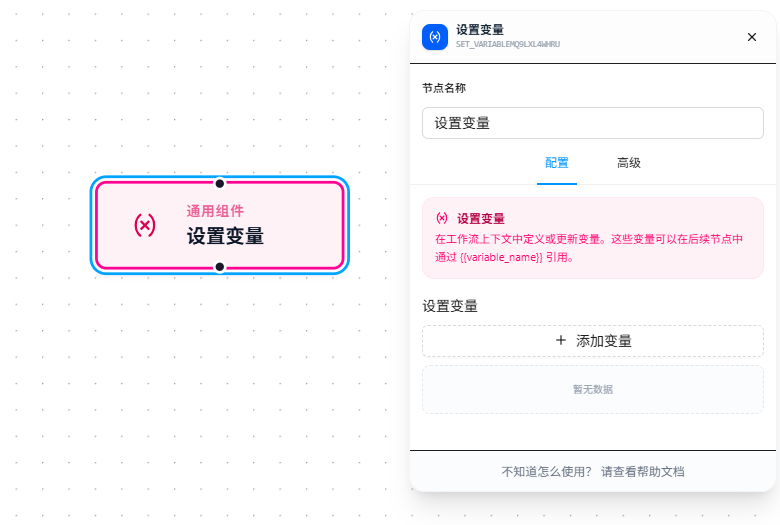
The Set Variable node is used to declare or update variables within a workflow. It is the starting point for all data flow. Any downstream node can reference these variables via {{variableName}}.
Prerequisites
Before using this node, make sure you understand Variables & Expressions, which covers:
- The two usage modes of
{{variableName}}(pure expression vs. mixed text) - Supported operations (arithmetic, comparison, logical, ternary)
- Built-in functions (
getPageUrl(),random(),Math.*, etc.) - Null-value handling behavior
Overview
Set Variable manages multiple variables through a draggable, sortable list. Click "Add Variable" to add a new entry; each entry independently configures its name, type, and value source. Variables execute in list order from top to bottom — later variables can reference earlier ones.
Usage
Variable List Management
- Click "Add Variable" to add a new variable entry
- Drag the left handle to reorder variable execution
- Each variable entry independently configures the following three fields
Variable Name
The variable identifier, referenced later via {{variableName}}. Naming conventions:
- Must start with a letter, underscore
_, or$ - Subsequent characters can be letters, digits, underscores, or
$ - Cannot be a reserved word:
id,$item,$currentTabId,$currentId,$rootTabId,$rootWindowId,$currentWindowId - Cannot contain spaces
Valid examples: username, _count, $price, userName2
Invalid examples: 123abc (starts with a digit), user name (contains a space), id (reserved word)
Data Type
| Type | Description | Example |
|---|---|---|
| String | String | "hello" |
| Number | Number | 99.00 |
| Boolean | Boolean | true / false |
| Object | Object | {"key": "value"} |
| Array | Array | ["A", "B", "C"] |
The type affects how the variable behaves in subsequent expressions — for example, + concatenates on String but adds on Number.
Value Source
Determines where the variable's value comes from. Four sources are supported.
Manual Input
Directly enter a fixed value. The simplest source — the value is determined at configuration time.
The input field adapts to the selected type (text input for strings, number input for numbers, toggle for booleans, etc.). For all sources, if parsing yields an empty result, it falls back to this default value.

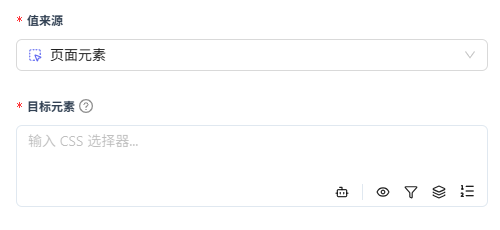
Page Element
Extracts element data from the page via CSS selector (or AI natural language mode). After configuring the target element, the node queries matching DOM elements at execution time and returns serialized element data (text content, attributes, etc.).
Ideal for dynamically scraping data from pages into variables.
Variable Reference
References variable values produced by other nodes (e.g., data collection results, HTTP responses, upstream Set Variable outputs). The referenced variable is accessed via {{variableName}} syntax — see Variables & Expressions for details. Supports the Data Transform Pipeline — after referencing a value, you can chain processing steps (e.g., trim, toNumber, regex extraction, etc.) for cleaning before assignment.
This is the most flexible source: take data from any upstream node, process it through the pipeline, and transform it into the format you need. For pipeline operators, see Data Transform Pipeline.

Code Block
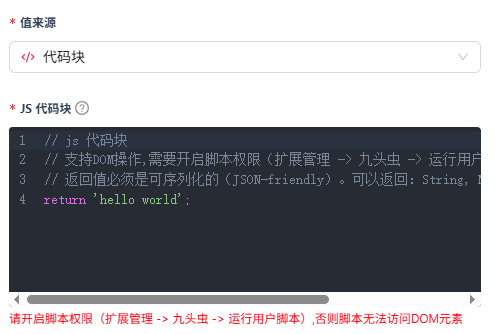
Write JavaScript code whose return value becomes the variable's value. You can reference upstream variables in the code using {{variableName}} (see Variables & Expressions) — these references are replaced with actual values before execution.
Ideal for complex logic that built-in functions and pipelines cannot cover — custom calculations, conditional logic, data aggregation, etc.
Parameter Reference
| Parameter | Type | Default | Description |
|---|---|---|---|
| Variable Name | Text | — | Required. Must follow naming conventions. Referenced later via {{variableName}} |
| Data Type | Dropdown | string | string / number / boolean / object / array |
| Value Source | Dropdown | manual | manual — manually set; selector — page element; variable — variable reference; code — code block |
| Default Value | Depends on type | — | The fixed value in manual mode; also the fallback when other sources fail to parse |
| Target Element | CSS Selector | — | Element locator for page element mode |
| Reference Value | Variable Reference | — | Variable source for reference mode; supports Data Transform Pipeline |
| Code | JavaScript | — | JS code for code block mode; return value becomes the variable value |
FAQ
Variable is referenced but shows as empty
Symptom: Wrote {{variableName}} in a node parameter, but it replaces to empty at runtime.
Cause:
- The variable wasn't declared before being referenced — the Set Variable node must precede the node that references it in workflow order
- Inconsistent casing in the variable name (case-sensitive)
Solution: Use a Print Output node before the reference to confirm the variable exists; check for case mismatches.
Expression result type doesn't match expectations
Symptom: {{count + 1}} results in "11" instead of 2.
Cause: The variable type is string, so + performed string concatenation.
Solution: Select the correct type (Number instead of String) when setting the variable, or explicitly convert in the expression: {{Number(count) + 1}}. See Variables & Expressions.
Variable updated later but not taking effect
Symptom: Modified a variable value, but downstream nodes still reference the old value.
Cause: The variable update node executes after the referencing node in the workflow.
Solution: Check the workflow connection order to ensure the Set Variable node precedes the reference. Add a Print Output node right after Set Variable to verify.
Code block execution fails
Symptom: In code block mode, the workflow errors out when reaching this node.
Cause: JavaScript syntax error in the code, or referencing an undefined variable.
Solution: Test the code logic in the browser Console first, then paste it in once confirmed correct. When referencing upstream variables in code, use {{variableName}} — these are replaced with actual values before execution.