Read File
The Read File node reads file content from local or remote sources. It supports CSV, Excel, JSON, and TXT formats.
Overview
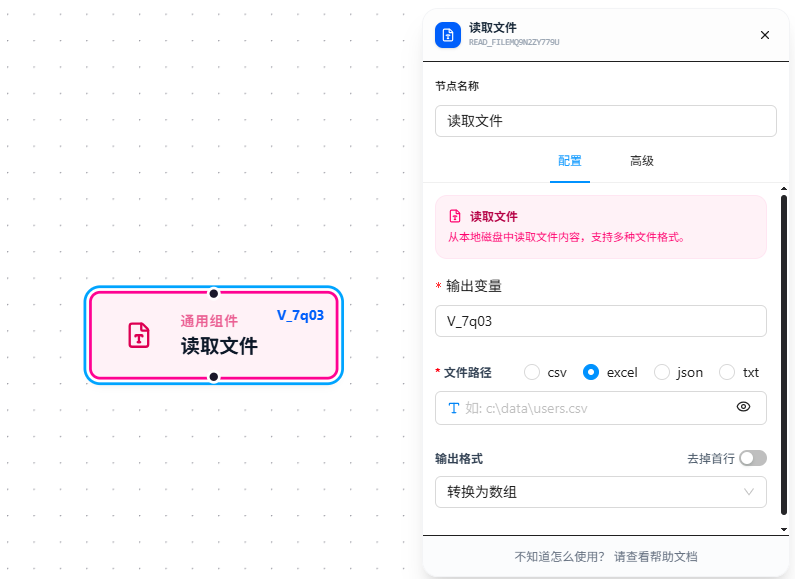
After selecting the file type, fill in the file path and output variable. The path can be a local absolute path or a remote URL. The parsed result can be further processed via the Data Transform Pipeline. The configuration panel provides a preview button to verify parsing before execution.
Usage
After dragging in the node, configure it as follows:
1. Select File Type
Four formats are supported: CSV, Excel (.xlsx / .xls), JSON, TXT. After selection, the type-specific output format options appear below.
2. Fill in File Path
Two sources are supported:
| Source | Format | Example |
|---|---|---|
| Local File | Local absolute path | C:\data\users.csv |
| Remote File | HTTP/HTTPS URL | https://example.com/data/users.csv |
Supports {{variableName}} references for dynamic paths. Remote files are downloaded locally before parsing.
3. Configure Output Format
Different options are provided based on file type:
| File Type | Output Format | Description |
|---|---|---|
| CSV / Excel | Array (array) | Each row as an array [val1, val2, ...] |
Object (object) | First row as field names, subsequent rows as data objects | |
| Skip First Row | Skip the first row (often a header); CSV/Excel only | |
| TXT | Entire Text (string) | File content as a single string |
Split by Line (array) | Split into an array of strings by line breaks | |
| JSON | — | Directly parsed as a JSON object or array |
4. Fill in Output Variable
Required. The parsed file content is stored in this variable, available downstream via {{variableName}}. Also supports chaining the Data Transform Pipeline for further processing.
Parameter Reference
| Parameter | Type | Default | Description |
|---|---|---|---|
| File Type | Dropdown | — | CSV / Excel / JSON / TXT |
| File Path | Text | — | Required. Local absolute path or remote URL; supports {{variableName}} references |
| Output Variable | Text | — | Required. Variable name to store the file content |
| Output Format | Dropdown | — | Depends on file type (see table above) |
| Skip First Row | Toggle | false | CSV / Excel only |
| Data Transform | list | — | Data Transform Pipeline applied after parsing |
FAQ
Permission error when reading local files
Symptom: Configured a local file path, but got a permission error at runtime.
Cause: Chrome extensions do not allow local file access by default; the permission must be manually granted.
Solution: Follow these steps to enable file access permission:
- Open Chrome, enter
chrome://extensionsin the address bar - Find "JTC RPA" in the extensions list
- Click "Details" below it
- Find the "Allow access to file URLs" toggle and enable it
No browser restart is needed after enabling. The Read File node can then read local files normally.
Reading remote files fails
Symptom: Provided a remote URL, but got an error or empty content at runtime.
Cause: The URL is unreachable (network issue, login required, CORS restriction), or the remote server is not returning the expected file format.
Solution: Access the URL directly in the browser to confirm the file can be downloaded; confirm the URL starts with http:// or https://.