Data Collection
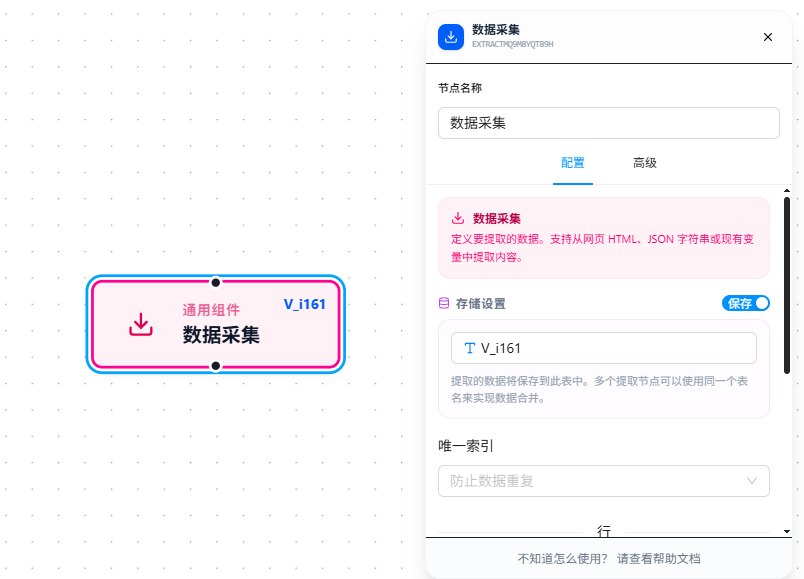
The Data Collection node extracts data in bulk using a define rows first, then define columns structured approach. It is JTC RPA's core data extraction node.
Prerequisites
Before using this node, it's recommended to understand the following concepts:
- Element Selectors — Both row selectors and column extraction rely on selectors to locate elements, particularly custom pseudo-classes like
:self(reference the current row element itself) - CSS Selector Tutorial — Beginner-friendly guide, including DevTools operation instructions
- Variables & Expressions — Column data can reference variables, and output results are passed via variables
- Data Transform Pipeline — After extraction, you can apply cleaning operations like
trim,toNumber,formatDateto each column's data
Overview
The core logic of Data Collection is a two-tier structure:
Rows → Define "where to look" — a set of container elements or an array
Cols → Define "what to extract" — specific fields within each row
Rows: Can be a set of container elements matched by a CSS selector (e.g., product card <div> elements, table rows <tr>), or an existing array variable. Each row corresponds to one final data record.
Columns: Within each row, define the fields to extract. Each column has an independent name and value source.
Extraction results can be output as variables for downstream use, or stored in a database. Multiple nodes can merge into the same table.
Usage
Step 1: Select Target Object
Decide where the data comes from — "CSS Selector" extracts from the page DOM, "Array List" extracts from an existing variable.
Step 2: Define Rows
- CSS Selector mode: Provide a container element selector. For example,
.product-itemfor a product list page, ortable.order-table tbody trfor a table. The node queries all matching elements at execution time — each match is one row. - Array List mode: Use
{{variableName}}to reference an existing array. Each element in the array becomes one row.
Step 3: Add Columns
Click "Add Column" to define the fields to extract for each row. Each column includes:
- Column Name: The field name — the key for this field in the output result
- Value Source: Determines how the column's value is obtained. Four sources are supported.
Four Column Value Sources
CSS Selector (only available in CSS Selector mode)
Queries child elements within the row element. The column's extraction scope is automatically limited to the current row element — writing .title finds .title inside the row element, not the entire page. This is the most efficient source; bulk DOM queries are completed in a single underlying pass.
Manual Input
A fixed value — the same for every row. Useful for adding constant marker fields, e.g., "source": "web".
Variable Reference
Takes values from other variables. Supports {{$item}} to reference the current row data, and the Data Transform Pipeline for chained cleaning.
{{$item}}              → The text content of the current row element itself
{{$item.name}}         → The name property of the row object (array mode)
{{userConfig.status}}  → Reference other upstream variables
Code Block
Write JavaScript code; the return value becomes the column's value. Access the current row data via $item in the code:
// $item is the current row object
return $item.price * $item.quantity;
Step 4: Configure Output
- Storage disabled: Results are only output as variables, referenced downstream via
{{variableName}} - Storage enabled: Results are simultaneously written to the database. Set "Output Variable" (which also serves as the table name). By default, all field combinations are deduplicated. Use "Unique Index" to specify deduplication by only certain fields. Deduplication is based on SHA256 hashing.
Specifying a Unique Index
With storage enabled, "Unique Index" is a multi-select dropdown listing all defined column names. Select one or more fields as the deduplication basis:
- No fields selected: All column value combinations are SHA256 hashed by default. Completely identical rows are treated as duplicates — only the first is kept.
- Some fields selected: Only the selected field combinations are hashed for deduplication. For example, selecting
order_idmeans rows with the same order ID are deduplicated, even if other fields (price, status) differ.
Example: 5 columns collected — id, name, price, status, time

No unique index selected → Rows with identical 5-column values are treated as duplicates
id selected                → Rows with the same id are treated as duplicates (later ones skipped)
id, status selected        → Rows with the same id AND status are treated as duplicates
If you don't want any deduplication at all, add a column that is unique per row (e.g., current timestamp or auto-increment index) and set it as the unique index. This way every row's hash is different, and no data is skipped.
$item vs. :self
Both are used to reference the "current row" in column rules; the difference is where they're used:
| Usage | Applicable Scenario | Meaning |
|---|---|---|
{{$item}} | Variable reference, code block columns | The current row data object |
{{$item.field}} | Variable reference column in array mode | A specific property of the row object |
:self | CSS selector column | The current row DOM element itself |
:self(.class) | CSS selector column | A descendant within the row element with the specified class |
$itemis a runtime variable automatically injected during column computation; no manual definition is required.
Parameter Reference
| Parameter | Type | Default | Description |
|---|---|---|---|
| Target Object | Dropdown | selector | CSS Selector — extract from page DOM; Array List — extract from existing array variable |
| Row Data | Text | — | Required. Selector mode: CSS selector; Array mode: {{variableName}} |
| Column Name | Text | — | Field name — the key in the output data |
| Column Value Source | Dropdown | — | CSS Selector / Manual Input / Variable Reference / Code Block |
| Output Variable | Text | — | Variable name to store the result. When storage is enabled, also serves as the database table name |
| Unique Index | Multi-select | All fields | Specifies which fields to use for deduplication. If not set, all column value combinations are used. Based on SHA256 hashing |
FAQ
Row selector matches elements but column extraction is empty
Symptom: The row count is correct, but every column's value is empty.
Cause: The column extraction rule didn't hit anything within the row elements — the column selector may target the entire page rather than within the row.
Solution: Column extraction rules are automatically scoped to within the row element. In DevTools, first select a row element, then verify the selector within it.
Some data is skipped and not stored in the database
Symptom: Fewer data records were collected than expected; some rows weren't written to the database.
Cause: By default, all field combinations are deduplicated. If two rows have identical values for all fields, the later one is skipped. If a unique index is specified, only the specified fields are used for deduplication.
Solution: To deduplicate by specific fields (e.g., only by order_id), select those fields in "Unique Index." To prevent deduplication from affecting collection results, add a unique identifier column (e.g., auto-increment index, current timestamp, etc.).
Collected text has messy formatting
Symptom: Extracted text has leading/trailing spaces or line breaks, or numbers come out as strings.
Cause: Raw text in HTML retains formatting characters.
Solution: Use the Data Transform Pipeline to clean column data — add trim to remove whitespace, toNumber to convert to numbers, stripHTML to remove tags, etc.