AI Smart Extraction
Describe what data you want in natural language, and AI automatically parses the page structure to return structured results.
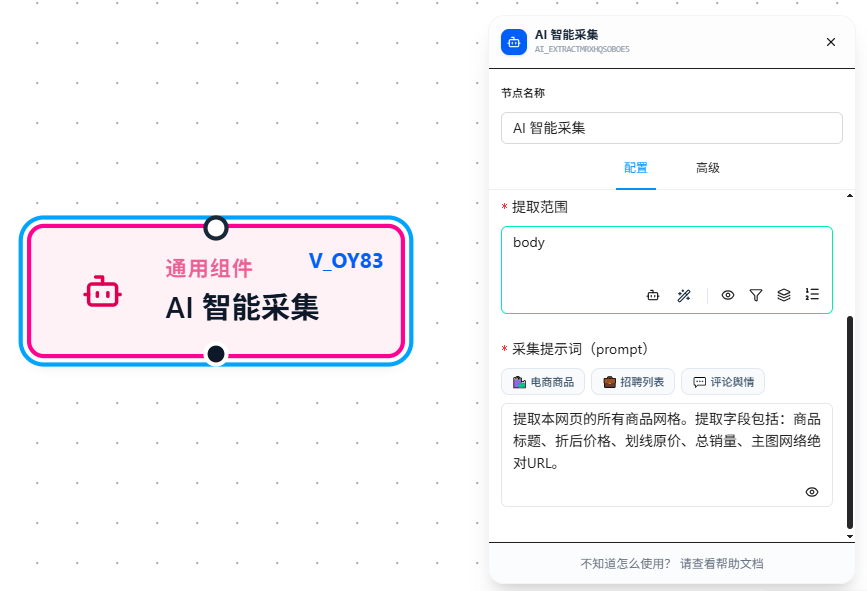
Configuration
Variable Name
Enter a variable name (e.g., products_table). Extraction results are stored in this variable and can be referenced downstream via {{variable_name}}.
Extraction Scope
Limits which page area AI extracts from. Supports CSS selectors (e.g., .product-list) or semantic descriptions (e.g., "the product listing area"). Narrowing the scope prevents interference from other page regions.
Extraction Prompt
Describe which fields to extract in natural language. Example:
Extract all products from the product list. Fields: product title, discounted price, original price, total sales, main image URL.
Three quick templates are built in — click to fill:
| Template | Fields |
|---|---|
| 🛍️ E-commerce | Product title, discounted price, original price, total sales, main image URL |
| 💼 Job Listings | Job title, salary, company name, education requirements, benefits tags |
| 💬 Reviews | Username, review content, post time, interactions, IP location, sentiment |
You can modify the prompt after selecting a template.
Preview
Click the 👁 button next to the prompt input to preview extraction results on the current page in real time. Verify before running the full workflow.
Parameter Reference
| Parameter | Description |
|---|---|
| Variable Name | Required. Variable to store extraction results |
| Extraction Scope | Required. CSS selector or semantic description to limit extraction area |
| Extraction Prompt | Required. Natural language description of fields to extract |
FAQ
Extraction returns empty results
- Verify the "Extraction Scope" correctly targets the data container
- Make the prompt more specific (e.g., "discounted price" rather than "price")
- If data loads asynchronously, add a Wait Element node beforehand
Field names or types don't match expectations
Specify field names explicitly in the prompt. Follow extraction with a Set Variable node and use the Data Transform Pipeline to convert types.