Multi-Branch (Switch)
The Multi-Branch node routes the workflow to the corresponding Case branch based on the value of a switch variable, implementing switch-case logic.
Overview
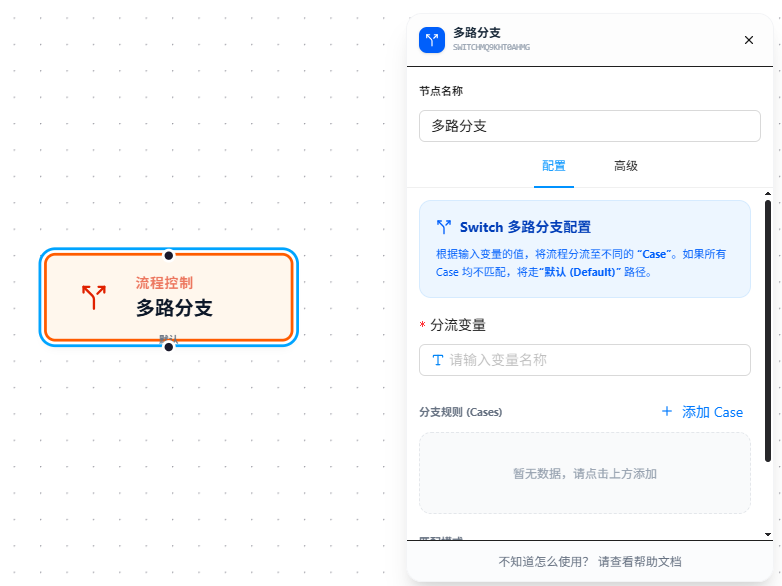
After filling in the switch variable, dynamically add Case entries (each Case corresponds to a match value and an output port). If no Case matches, the Default branch is taken.
Usage
After dragging in the node, follow these steps:
1. Fill in the Switch Variable
Enter the variable to evaluate in "Switch Variable," e.g., {{status}}. Supports {{variableName}} references.
2. Select Match Mode
- Exact Match: The variable value must match the Case value exactly. Note type differences — the number
10and the string"10"are not an exact match - Contains Match: The variable value containing the Case value is considered a match. String matching is position-independent; array matching checks element existence
3. Add Cases
Click "Add Case" to add a branch. Each Case takes a match value. Match values are compared against the switch variable one by one in the selected mode; the first match's output port is taken. Cases are matched top-to-bottom — once a match is found, subsequent Cases are not checked.
4. Connect Output Ports
Connect each Case and the Default output port to their corresponding downstream nodes. The Default port triggers when no Case matches — it must be connected to ensure the workflow has a fallback path.
Parameter Reference
| Parameter | Type | Default | Description |
|---|---|---|---|
| Switch Variable | Text | — | Required. The variable to match. Supports {{variableName}} references; see Variables |
| Match Mode | Dropdown | equals | equals — exact match; contains — contains match |
| Cases | list | — | Dynamic list. Each entry is a match value; can be added/removed. Matched top-to-bottom; stops at first match |
FAQ
Variable value equals the Case value but went to Default
Symptom: The variable value looks the same as the Case value, but the flow went to Default.
Cause: Match mode is exact match with type mismatch (e.g., number vs. string), or case difference.
Solution: Check whether the variable type matches the Case value type; if case-insensitive matching is acceptable, use contains match mode.
What happens when multiple Cases match simultaneously
Symptom: The variable value satisfies multiple Case conditions.
Cause: Cases are matched top-to-bottom; the first match wins.
Solution: Place more specific Cases first and broader Cases later. No manual handling of duplicate matches is needed.