Text Input
The Text Input node fills content into an input field or textarea, supporting simulated character-by-character typing and post-input keyboard actions.
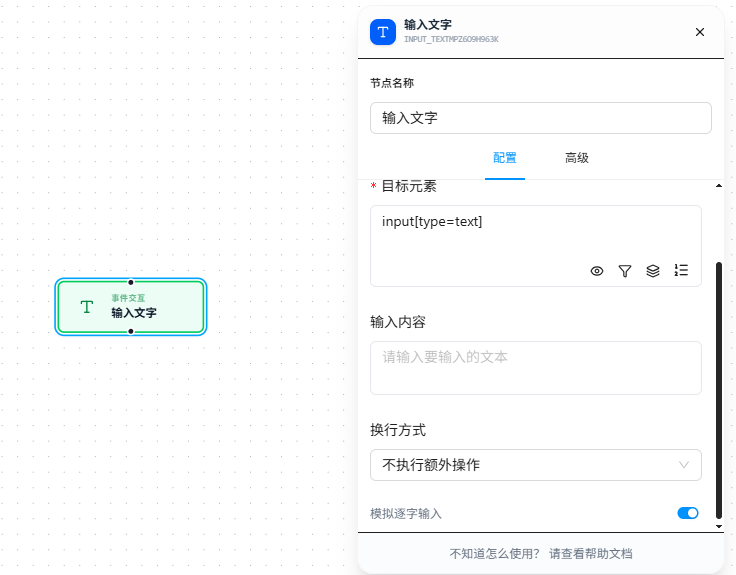
Usage Example
Scenario: Fill in a login form
A login page has username and password fields. Fill them in and press Enter to submit.
Text Input (username field, fill in "admin")
Text Input (password field, fill in "123456")
On the second Text Input node, enable "Simulate Typing" and set the line break mode to "Enter" — simulating a human typing and pressing Enter to submit.
Target elements support AI natural language mode — just write username input field, password input field without manually writing CSS selectors. Also supports {{variableName}} references for dynamic content:
Text Input (search box, fill in {{keyword}})
Parameter Reference
| Parameter | Type | Default | Description |
|---|---|---|---|
| Target Element | CSS Selector | — | Required. Points to <input> or <textarea>; when pointing to <label>, automatically finds the associated input |
| Text Content | Text | — | Required. Supports {{variableName}} references |
| Line Break Mode | Dropdown | None | None / Enter / Shift+Enter / Tab |
| Simulate Typing | Toggle | false | When enabled, types character by character, simulating human typing speed |
FAQ
Text shows in the input field but form validation fails
Text is filled in but validation fails on submit — typically the frontend framework didn't detect the value change.
Solution: Enable "Simulate Typing"; or add a Trigger Event node after Text Input to manually dispatch an input event.