Key Press
The Key Press node simulates keyboard input, sending key events to the page.
Overview
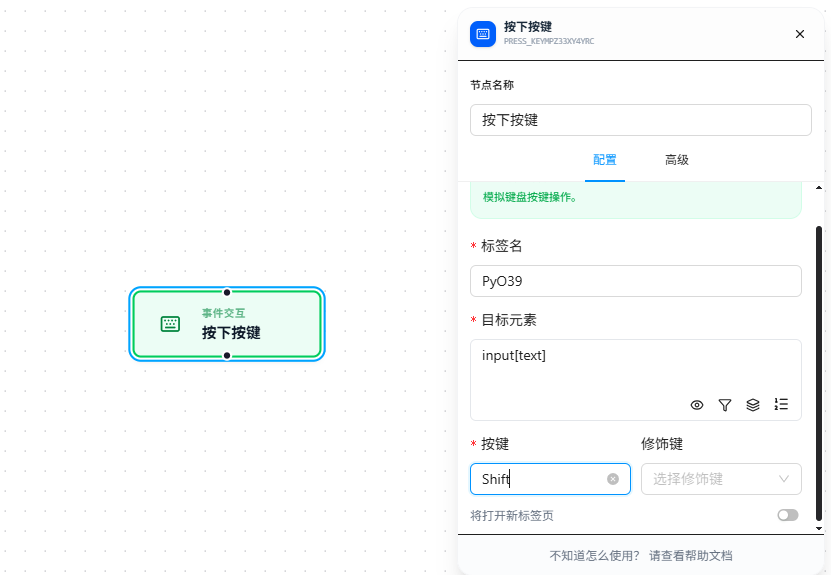
Press the target key directly in the "Key" input field. Can be combined with modifier keys (Ctrl/Shift/Alt/Meta) for key combinations. Supports opening a new tab and executing subsequent actions in the new page.
Quick Start
The following example demonstrates a complete workflow triggered via Context Menu:
- Trigger: Context Menu — right-click on a matching page to start the workflow
- Step 1: Scroll — scroll to the
#card-keydownelement - Step 2: Key Press — press the Enter key on the
#card-keydownelement - Execution Page:
https://jtcrpa.com/test/index.html
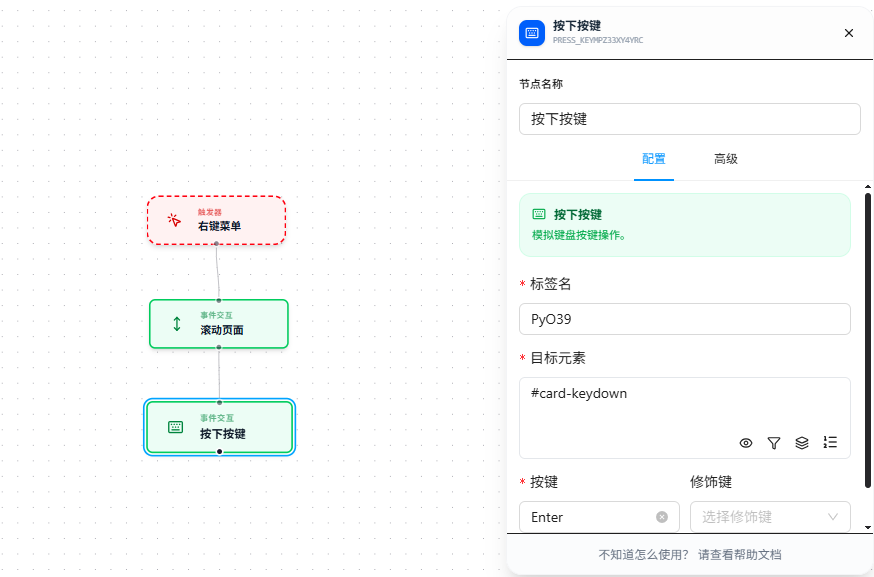
At execution time, first right-click on the matching page and select the menu item to start the workflow, scroll to the target element, then the Key Press node triggers the Enter key on #card-keydown.
Parameter Reference
| Parameter | Type | Default | Description |
|---|---|---|---|
| Label Name | Text | — | Node name, required. Must follow variable naming conventions |
| Target Element | Text | — | CSS selector, required. The element to send the key event to. Leave empty to send to the currently focused element |
| Key | Text | — | Required. Press the target key directly in the input field |
| Modifier Keys | Multi-select | — | Multi-select: Ctrl, Shift, Alt, Meta |
| Open New Tab | Toggle | false | Whether to execute in a new tab |
| Switch to New Page | Toggle | false | Whether to switch to the new tab after opening |
FAQ
Key was sent but the input field shows no text
Symptom: After sending a character key to an input field, no characters appear.
Cause: Some frontend frameworks bind to the input event rather than keydown for their input fields.
Solution: Use the Text Input node instead, or use the Trigger Event node to manually dispatch an input event.