Switch Window
The Switch Window node switches browser focus to another open window.
Overview
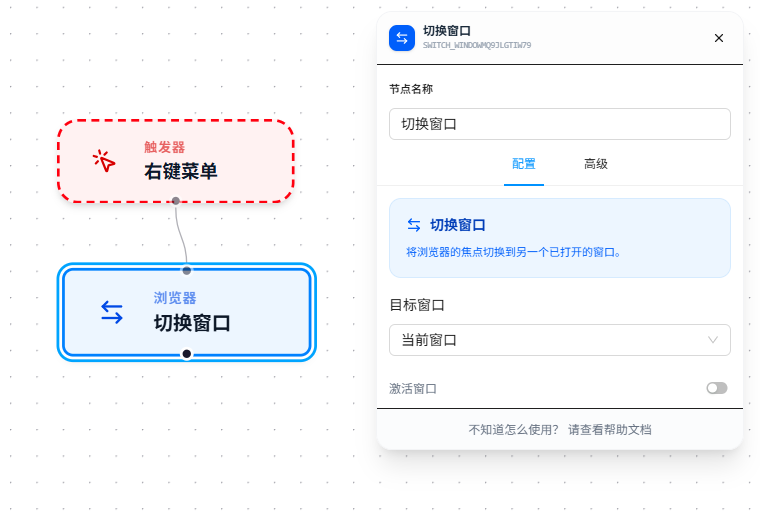
Select the window to switch to from the "Target Window" dropdown and execute.
Usage
After dragging in the node, select the window to switch to from the "Target Window" dropdown. The dropdown options come from:
| Option | Source |
|---|---|
| Current Window | Always present — the currently active window |
| Initial Window | Always present — the window that was open when the workflow started |
| Other Window Names | Determined by the "Window Name" of upstream nodes |
Where Window Names Come From
Aside from "Current Window" and "Initial Window," the remaining options in the dropdown come from the window name filled in upstream Open Window nodes. In other words, which window you can switch to depends on what name it was given when it was opened upstream.
Enable "Activate Window" to automatically bring the window to the foreground after switching.
Parameter Reference
| Parameter | Type | Default | Description |
|---|---|---|---|
| Target Window | Dropdown | — | Select an open window to switch to; options are dynamically generated by the system |
| Activate Window | Toggle | false | Whether to auto-focus after switching |
FAQ
Element not found after switching windows
Symptom: After switching to a specified window, downstream nodes report "element not found."
Cause: The target window's page URL doesn't match expectations, or the page hasn't finished loading.
Solution: Insert a Wait Element or Open Page node after switching to ensure the target window is in the expected state.