Show Notification
The Show Notification node displays a system-level notification in the browser.
Overview
Sends a notification with a title and body to the user. Ideal for progress updates or exception alerts during long-running automation tasks. Browser notification permission must be granted before use.
Usage
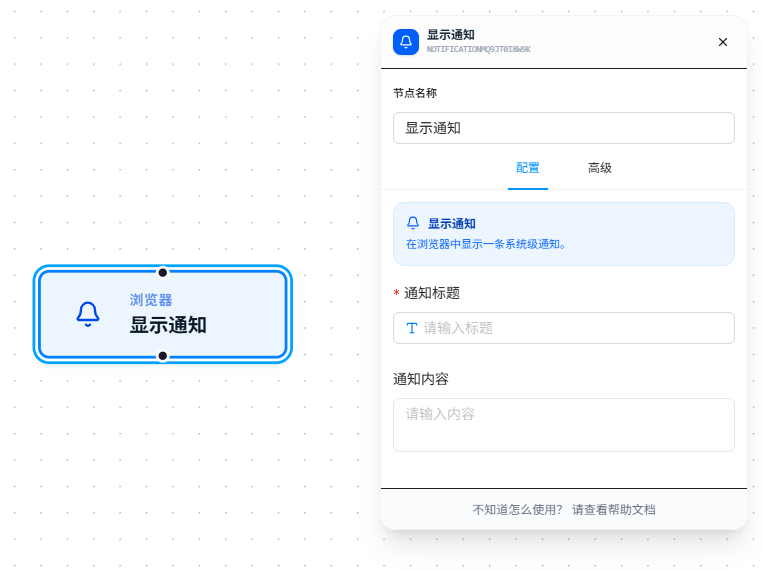
After dragging in the node, fill in the notification content:
- Notification Title: Required. The main title of the notification. Supports
{{variableName}}references. - Notification Body: The body text of the notification. Supports
{{variableName}}references.
After execution, the notification pops up at the OS level, visible even when the browser is in the background. Ideal for adding notifications at key points in long workflows (e.g., scraping completed, exception caught) so users don't need to keep watching the screen.
Ensure the browser has granted notification permission before use; otherwise, the notification won't appear. See the FAQ below.
Parameter Reference
| Parameter | Type | Default | Description |
|---|---|---|---|
| Notification Title | Text | — | Required. Supports {{variableName}} references; see Variables |
| Notification Body | Text | — | Notification body text. Supports {{variableName}} references |
FAQ
Notification doesn't appear
Symptom: The node executes successfully but no notification is visible on screen.
Cause: Browser notification permission is not granted, or the OS notification center has muted the browser.
Solution: Click the lock icon on the left side of the browser address bar → Notifications → select "Allow."