Handle Dialog
The Handle Dialog node automatically responds to browser alert, confirm, and prompt dialogs, preventing them from blocking subsequent node execution.
Overview
Native dialogs on a page block the JavaScript main thread — if left unhandled, subsequent nodes cannot execute. This node pre-registers an interceptor that uses a regular expression to match dialog message content and automatically performs a preset action when matched.
Critical: The interceptor must be registered before the dialog appears. Therefore, this node must be placed before the operation node that triggers the dialog.
Usage
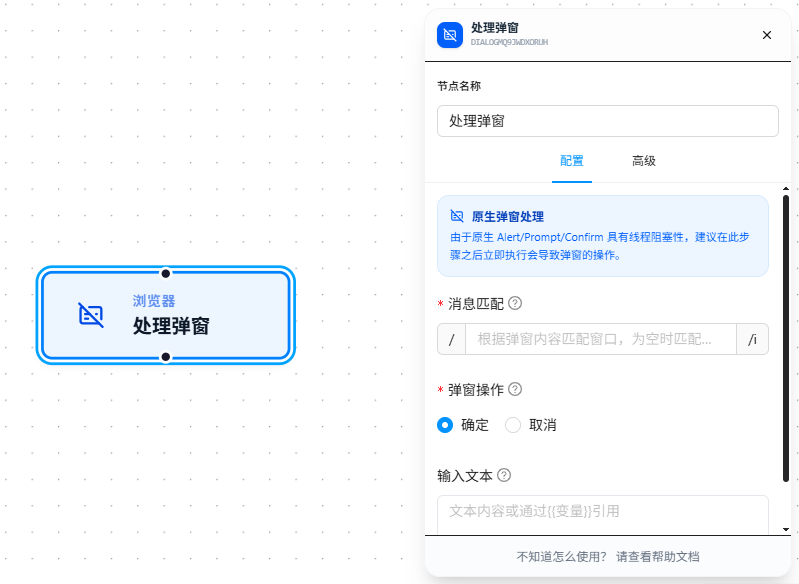
After dragging in the node, configure the following three items:
Message Match
A regular expression to match the text content displayed in the dialog. The panel defaults to /pattern/i, indicating case-insensitive matching.
- Use a specific keyword, e.g.,
delete, to only match dialogs containing "delete" - Use
.*or leave empty to match all dialogs - When debugging, start with
.*to confirm the interceptor works, then tighten the regex
Dialog Action
Choose the action to perform automatically when a dialog appears:
| Action | Applicable Dialog Types | Effect |
|---|---|---|
| OK | alert / confirm / prompt | Equivalent to clicking "OK" |
| Cancel | confirm / prompt | Equivalent to clicking "Cancel" |
For
alertdialogs, only OK is possible — there is no Cancel button.
Input Text
Only effective for prompt dialogs. The text to automatically fill in the input field when a prompt dialog appears. Supports {{variableName}} references.
Node Placement
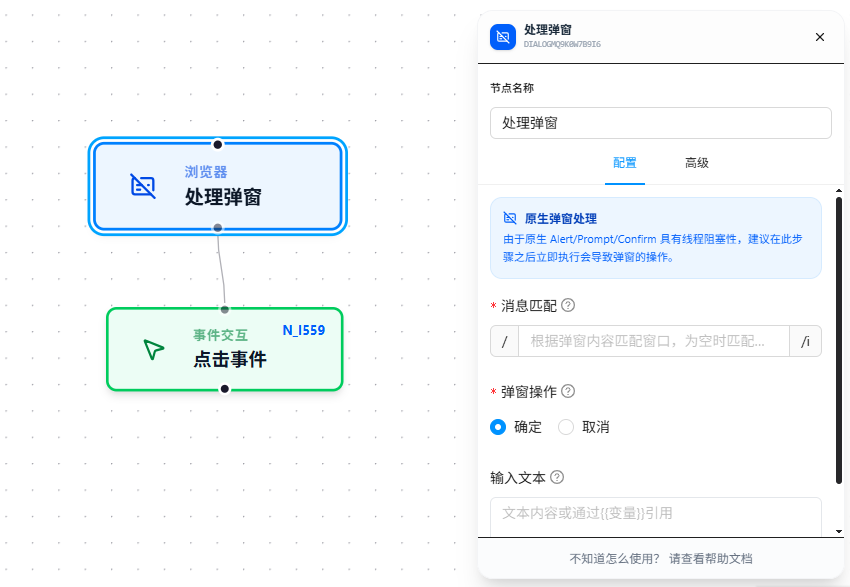
Handle Dialog must be placed before the node that triggers the dialog — otherwise it won't work.
The reason is that native dialogs (alert / confirm / prompt) block the JavaScript main thread. The workflow executes in connection order:
- First passes through the "Handle Dialog" node → the interceptor is registered and starts listening
- Then passes through the "Click" node → clicking triggers a dialog → the interceptor immediately captures and auto-handles it
Conversely, if the click comes first, the dialog blocks the main thread and subsequent nodes can't execute at all — the interceptor would never be registered. This is why the order cannot be reversed.
Parameter Reference
| Parameter | Type | Default | Description |
|---|---|---|---|
| Message Match | Text | — | Regular expression to match dialog text content. Supports standard regex syntax; /pattern/i in the panel indicates case-insensitive |
| Dialog Action | Dropdown | — | OK — click OK (works for alert); Cancel — click Cancel (works for confirm) |
| Input Text | Text | — | Text to auto-fill in prompt dialogs. Supports {{variableName}} references; see Variables |
FAQ
Dialog still blocks the workflow
Symptom: Configured a Handle Dialog node, but the workflow still gets stuck when a dialog appears.
Cause: The Handle Dialog node is placed after the node that triggers the dialog — the interceptor must be registered before the dialog appears.
Solution: Ensure the Handle Dialog node precedes the dialog-triggering node in the workflow connection order (register the interceptor first, then trigger the dialog).
Regex doesn't match dialog content
Symptom: The dialog text clearly contains the keyword but isn't intercepted.
Cause: The regex is written incorrectly, or case sensitivity caused the match to fail.
Solution: The /i flag in the panel is enabled by default for case-insensitive matching. For debugging, first use a simple regex like .* to match all dialogs and confirm the interceptor itself works, then gradually tighten the regex.